Check a Tool Does Not Upload Files
Many web utility services claim to value your privacy while quietly transmitting confidential documents to remote cloud storage. You do not have to rely on trust alone. This guide details two practical methods you can use right now to prove whether a tool processes files on your device.
The Difference Between Local and Server Processing
When a web service processes a file on a server, your browser must package the document bytes into an HTTP request (usually a multipart POST request) and transmit them over the internet. The server performs the conversion or edit and sends the result back.
When a tool operates on your device, your browser downloads the application code (HTML, CSS, and JavaScript) during your initial page visit. Once loaded, the browser reads your files directly from disk into local memory. All image calculations, PDF manipulations, and format conversions execute within your device processor.
You can verify this client-side behavior on any page across QuickFileTools using either the offline disconnect test or the browser network inspector.
Method 1: The Offline Disconnect Test
The simplest, most definitive test requires no technical background:
- Open any tool on QuickFileTools (such as Compress Image, Image Resizer, or Sign PDF) in your web browser.
- Wait for the page to finish loading completely.
- Select a document or photo from your device.
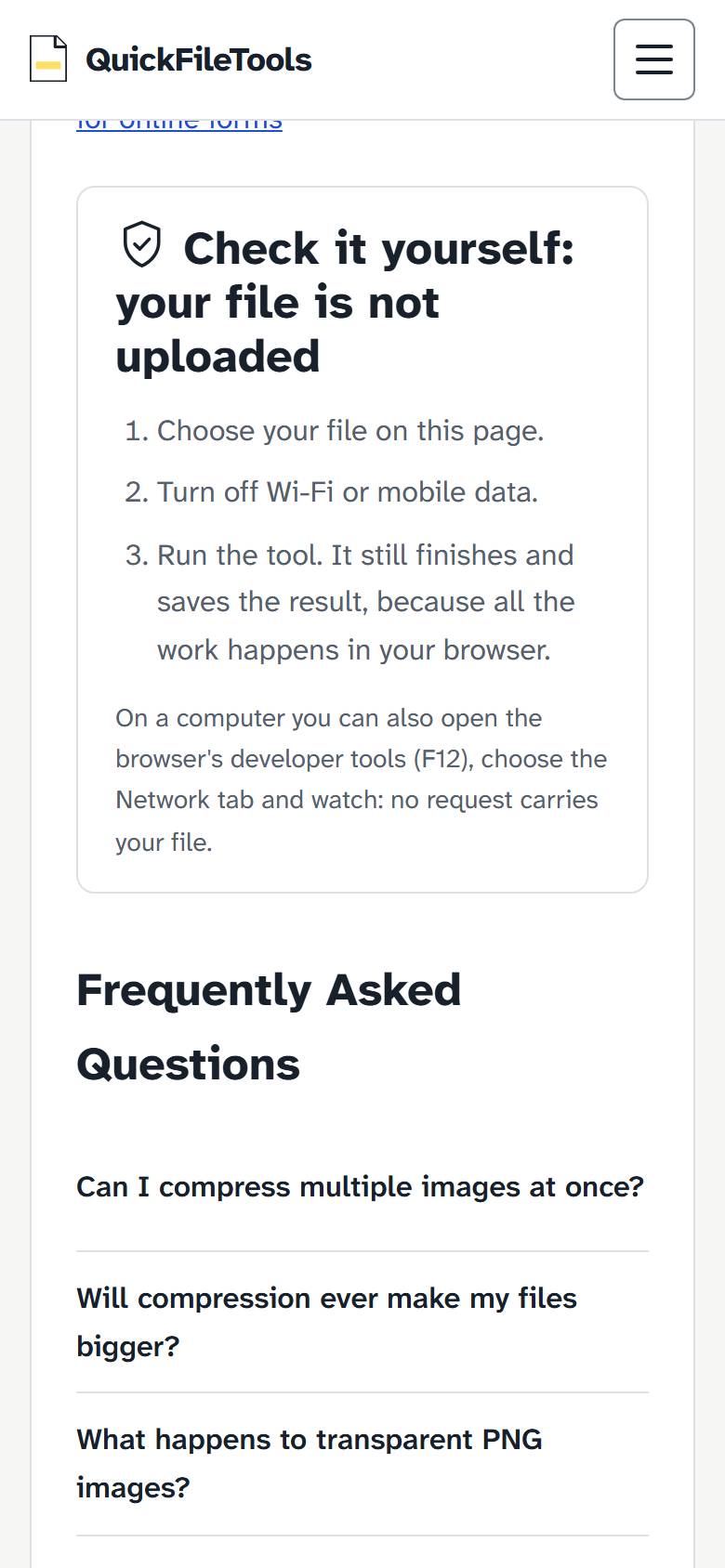
- Disconnect your device from the internet: turn off your Wi-Fi, disable mobile data, or enable Airplane mode on your phone or laptop.
- Adjust settings and click the action button to process the file.
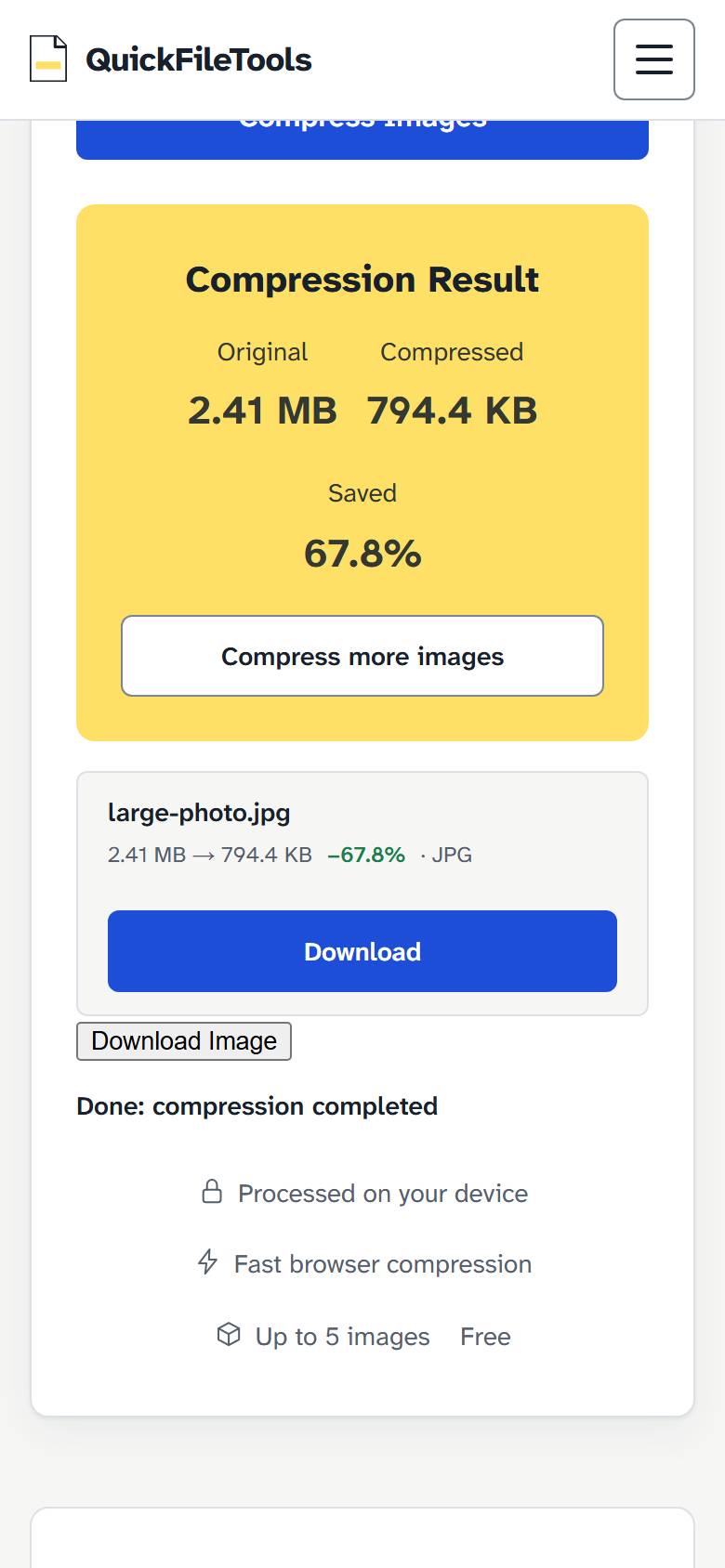
- Observe that the tool completes its operation and produces a downloadable result.
Because your device has no active internet connection, it is physically impossible for the file to travel to an external server. If the tool finishes successfully while offline, all computation was executed locally on your device.
Method 2: Inspecting the Browser Network Tab
For a detailed technical audit while remaining connected to the internet, use your browser's built-in developer tools (available in Google Chrome, Microsoft Edge, Mozilla Firefox, and Apple Safari):
- Open the tool page in your browser.
- Right-click anywhere on the page and select "Inspect", or press F12 (Control+Shift+I on Windows/Linux, Command+Option+I on macOS).
- Click on the Network tab in the developer tools panel.
- Optional: click the "Fetch/XHR" filter button to focus specifically on asynchronous data requests.
- Clear any existing log entries by clicking the clear icon (represented by a circle with a line or a trash can).
- Select your file and click the process or download button on the page.
- Inspect the network log: no HTTP POST, PUT, or PATCH requests containing your file bytes are transmitted to any remote endpoint. The request list remains empty or shows only static assets.
When a tool operates completely client-side, the browser process never initiates an outbound payload containing document data. Examining the request payloads confirms that your file contents never leave your device.
Red Flags to Watch For in Other Services
When testing third-party file manipulation websites, these symptoms indicate that files are being sent to an external server:
- Network activity on file selection: The Network panel immediately shows a POST request with a size roughly matching your file size.
- Failure when disconnected: The tool presents a connection error message when you turn off Wi-Fi before clicking the process button.
- Processing queues or countdown timers: Messages like "Queued on server" or "Your file will be deleted after 1 hour" confirm that server storage is being used.
Commitment to Device-Side Processing
At QuickFileTools, our privacy architecture is founded on zero remote document ingestion. As stated in our privacy policy, your files are never transmitted to us or third parties. Modern web standards make it entirely possible to deliver fast, capable document utilities right inside your browser without sacrificing your privacy.