Why PDF to Word Loses Formatting, and What to Do
Understand why PDF to Word conversion strips layout, see our real test results, and learn when to extract text, edit source files, or use other tools.
The short answer
A PDF stores positions on a page, not the headings, columns and tables of the original document, so a converter has to guess them. Our PDF to Word converter does not try to rebuild the layout: it gives you the text in an editable .docx. If you need the layout, go back to the original file when you can.
Our tool extracts text. It does not rebuild the page. Someone who needs the layout kept should not expect it from this tool. When you convert a PDF here, you receive the words extracted into an editable document, but fonts, styling, columns and graphics are not kept.
Why formatting goes missing
When an author creates a document in a word processor, the software saves structural data. The file defines heading levels, paragraph boundaries, bullet lists, column divisions, and table structures. Content behaves as an organized, flowing stream.
When that document is saved as a PDF, the focus moves to where things sit on a fixed page. A title is usually just characters placed at a position on the page, not a heading the software can recognise.
So a converter must guess where paragraphs begin, which lines belong together, and how columns relate to each other. Our tool does not try to rebuild the layout: it puts the words it finds into plain paragraphs in a .docx file.
What we tested
To show what happens during conversion, we tested the live tool on 3 November 2026. Both Chromium and Firefox gave the same structure.
The test input was a one-page generated test report containing:
- A 22 pt coloured heading
- A five-line paragraph
- One picture
- A ruled 3 × 3 table
- Two columns of eight lines
The table below shows what was in the PDF and what came out in the Word file:
| In the PDF | In the Word file |
|---|---|
| Heading in larger coloured type | Plain text, in the same paragraph as the text below it |
| Five-line paragraph | Text kept, words in order |
| Picture | Gone (0 images in the file) |
| Ruled 3 × 3 table | 0 Word tables; three lines of text: Item Qty Price, Paper 2 150, Ink 1 900 |
| Two columns | Mixed together line by line: Left column line 1 text Right column line 1 text Left column line 2 text ... |
The test confirmed three lessons:
- All the words came through; structure did not. The text from the heading, paragraph, table and columns all arrived, but the table borders and the picture did not.
- Columns are the worst case. Side-by-side lines were read straight across the page, mixing the two columns together line by line. Columns need the most fixing after conversion, so check them first.
- The file stayed on the device. We logged the browser's requests during the conversion and none sent data.
Convert the text
If you need the text from a document and plan to restyle the layout in Word yourself, follow these steps:
- Click Select PDF File or drag your file into the drop box. The tool accepts one file, up to 50 MB and 300 pages.
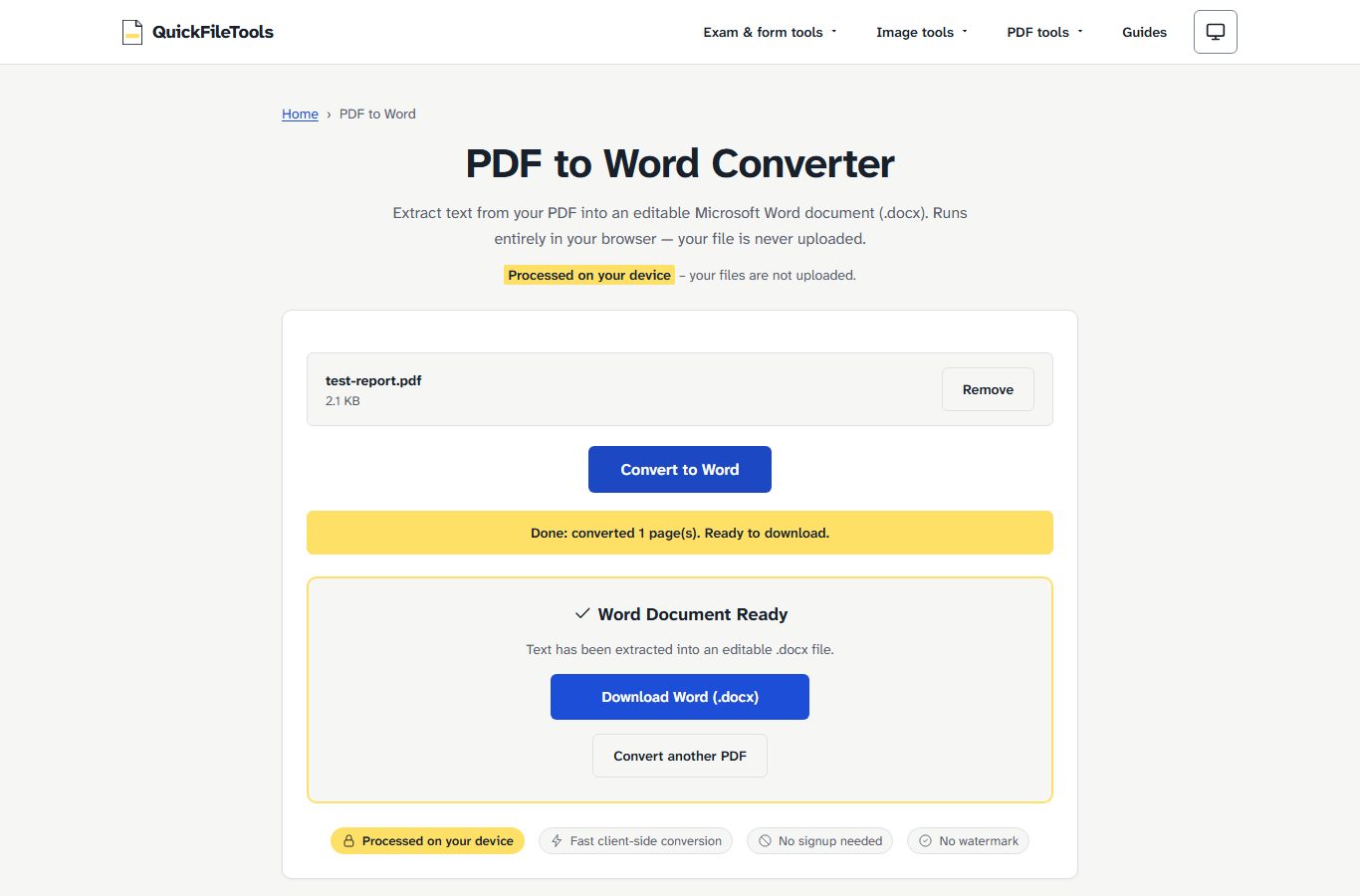
- Click Convert to Word. The browser extracts the selectable text from the file.
- When extraction finishes, the tool displays:
Word Document ReadyandText has been extracted into an editable .docx file. - Click Download Word (.docx) to save the result. The file is saved with the same name with
.docx. - Select Convert another PDF if you have another document to convert.
If your document is a scanned file containing pictures of text, the tool shows this error after you convert, and there is no download: Text only – layout, images and tables are not kept. Scanned (image-only) PDFs have no text to extract. This tool does not include OCR, so a scanned PDF needs its text read first before it can be converted.
What to do instead
Depending on what you need from your document, choose the approach that fits your situation:
- You have the original Word or other source file: Edit that source file directly. It still has the original structure, headings, and formatting.
- You need the words to quote, translate, or reuse: Convert the file here to extract the text, then rebuild headings and styles in Word.
- You need the data in a table: Use PDF to Excel, which is built for tables. It places rows and columns into a spreadsheet rather than plain text lines.
- You only need to reorder pages or sign: No conversion is needed. Use Organize PDF to reorder pages or Sign PDF to place a picture of your signature on the PDF.
- Your document has a password: The tool does not support encrypted files and displays:
Password-protected PDFs are not supported.Remove the password first using Unlock PDF, with a password you already know. - Two-column layout: Expect to separate the columns by hand. Side-by-side lines are read straight across, so you must divide them manually.
Frequently asked questions
Why are two columns mixed together line by line?
In our test, the tool read straight across from left to right, combining line 1 of the left column with line 1 of the right column. Expect to separate the columns by hand in Word.
What happened to the picture from my document?
The tool extracts text only and does not keep images or graphic elements. In our test with a one-page generated test report containing one picture, the resulting Word file contained 0 images.
Why did the table become plain text lines?
The tool creates 0 Word tables. In our test, a ruled 3 × 3 table was converted into three lines of text (Item Qty Price, Paper 2 150, and Ink 1 900).
What file size and page limits apply to conversion?
The tool accepts one file at a time, up to 50 MB and 300 pages.
Extract text on your device
When you need to extract editable text without retyping a document from scratch, use our PDF to Word tool. The conversion runs in your browser, so your files stay on your device.