PDF Too Large to Upload? Fixes That Work
Online application forms frequently enforce rigid size limits on PDF documents. This guide outlines how to shrink oversized PDFs safely on your device, explains why text documents respond differently than scans, and details splitting as a reliable fallback.
The Challenge of Portal Size Caps
Whether applying for a university admission, submitting tax documentation, or submitting resumes to an employer recruitment board, document portals frequently reject submissions that exceed strict file thresholds.
When a scanner or smartphone camera produces a multi-page PDF, it often embeds full-color photographic rasters for every single page. A multi-page scan can quickly balloon to a few megabytes or more, easily exceeding the portal's limit. Understanding how a PDF is constructed helps you select the right method to bring the document under the limit.
Why Text Documents and Scans Behave Differently
A PDF file is a container that holds multiple types of data streams:
- Text streams and vector fonts: Word processor exports (such as documents created in Word or LibreOffice) contain actual character codes, layout matrices, and font definitions. These streams are already compressed using standard deflate routines and take up very little space, even for many pages of text.
- Raster images: When you scan a physical piece of paper, the scanner captures an image grid of pixels. Even a black-and-white page may be saved as a high-resolution color bitmap. Embedded images usually account for most of a document's total file size.
Because of this structural difference, PDF compression primarily achieves size reduction by downsampling, resizing, and re-encoding embedded raster images. If a PDF contains only vector text with no embedded photographs or scanned pages, standard PDF compression will yield minimal byte savings, because there are no heavy image matrices to shrink.
Step 1: Compressing Images Inside the PDF
If your document contains scanned pages or embedded photos, Compress PDF reduces its file size without requiring you to re-scan.
- Open Compress PDF in your browser.
- Select or drop your PDF document into the box. The file is analyzed locally on your device.
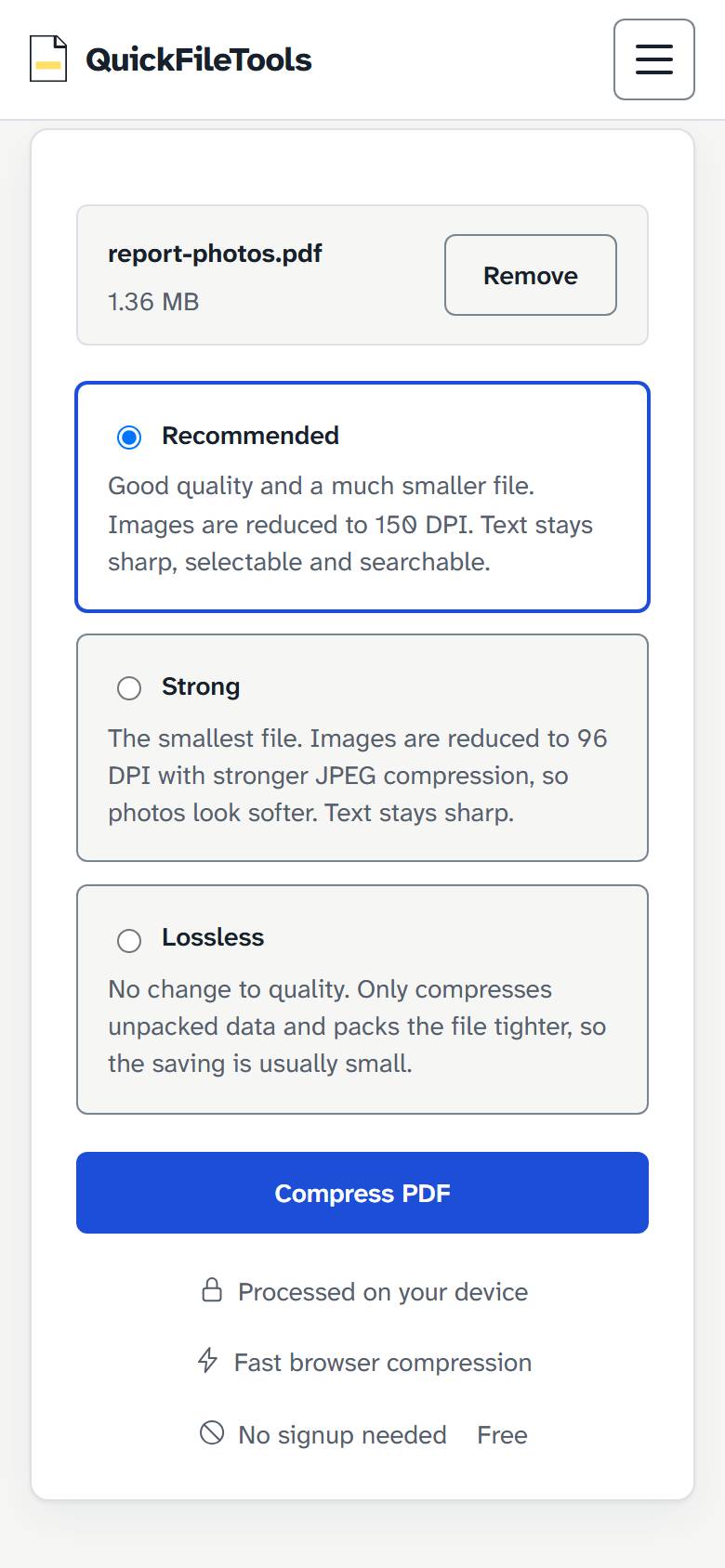
- Choose your compression level:
- Recommended: Good quality and a much smaller file. Images are reduced to 150 DPI. Text stays sharp, selectable, and searchable.
- Strong: The smallest file. Images are reduced to 96 DPI with stronger JPEG compression, so photos look softer. Text stays sharp.
- Lossless: No change to quality. Only compresses unpacked data and packs the file tighter, so the saving is usually small.
- Select "Compress PDF". The browser re-encodes embedded images and optimizes the document.
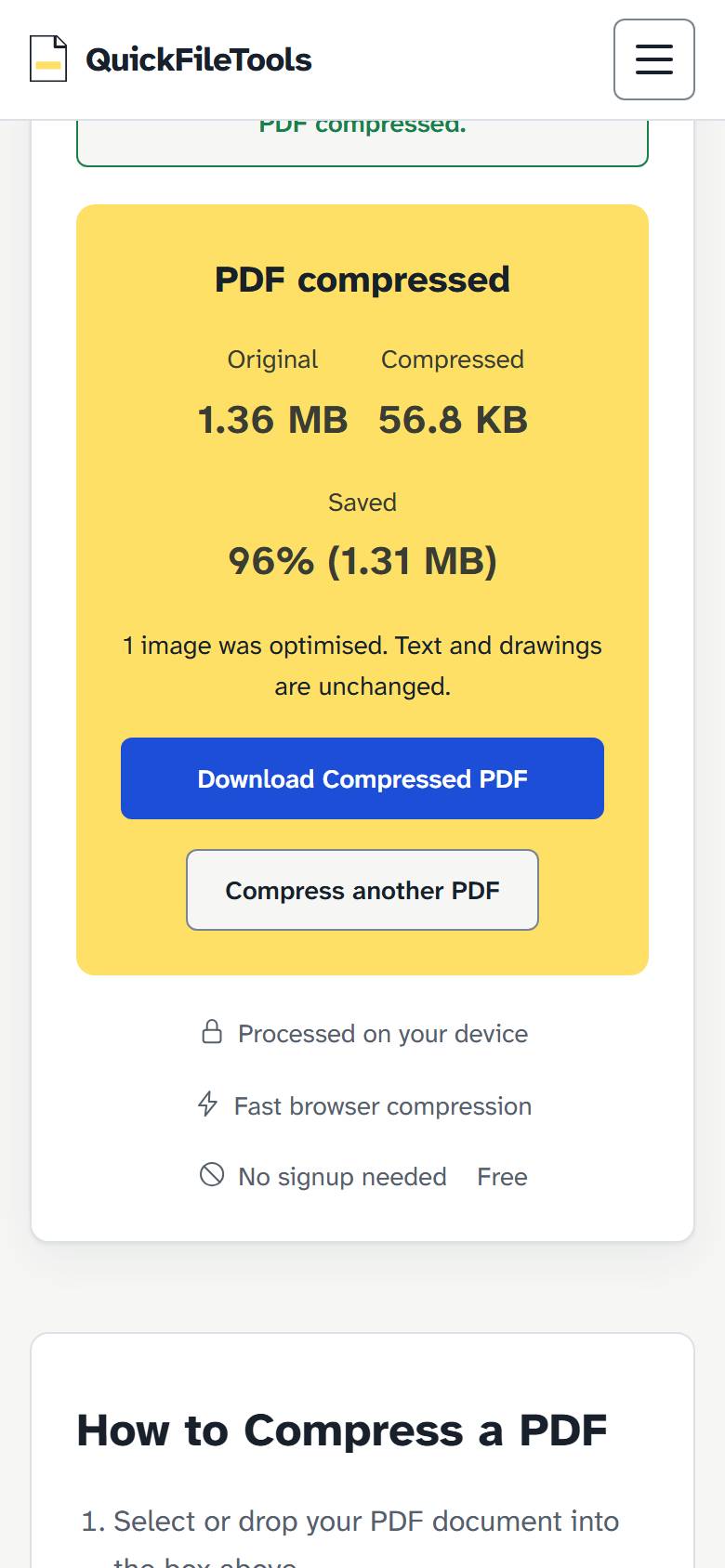
- Review the result showing original and new size. If no smaller version is possible, the tool keeps your original file unchanged.
- Select "Download Compressed PDF" to save the file to your device.
When Compression Is Not Enough: Split PDF as a Fallback
Occasionally, even strong compression cannot bring a massive file below an aggressive threshold without making scanned text unreadable. For instance, a document with many scanned pages or complex diagrams cannot always fit into the portal's limit.
In these scenarios, use Split PDF as your fallback:
- Identify if the portal allows multiple attachments (such as separate parts or sections).
- Open Split PDF and choose your PDF file.
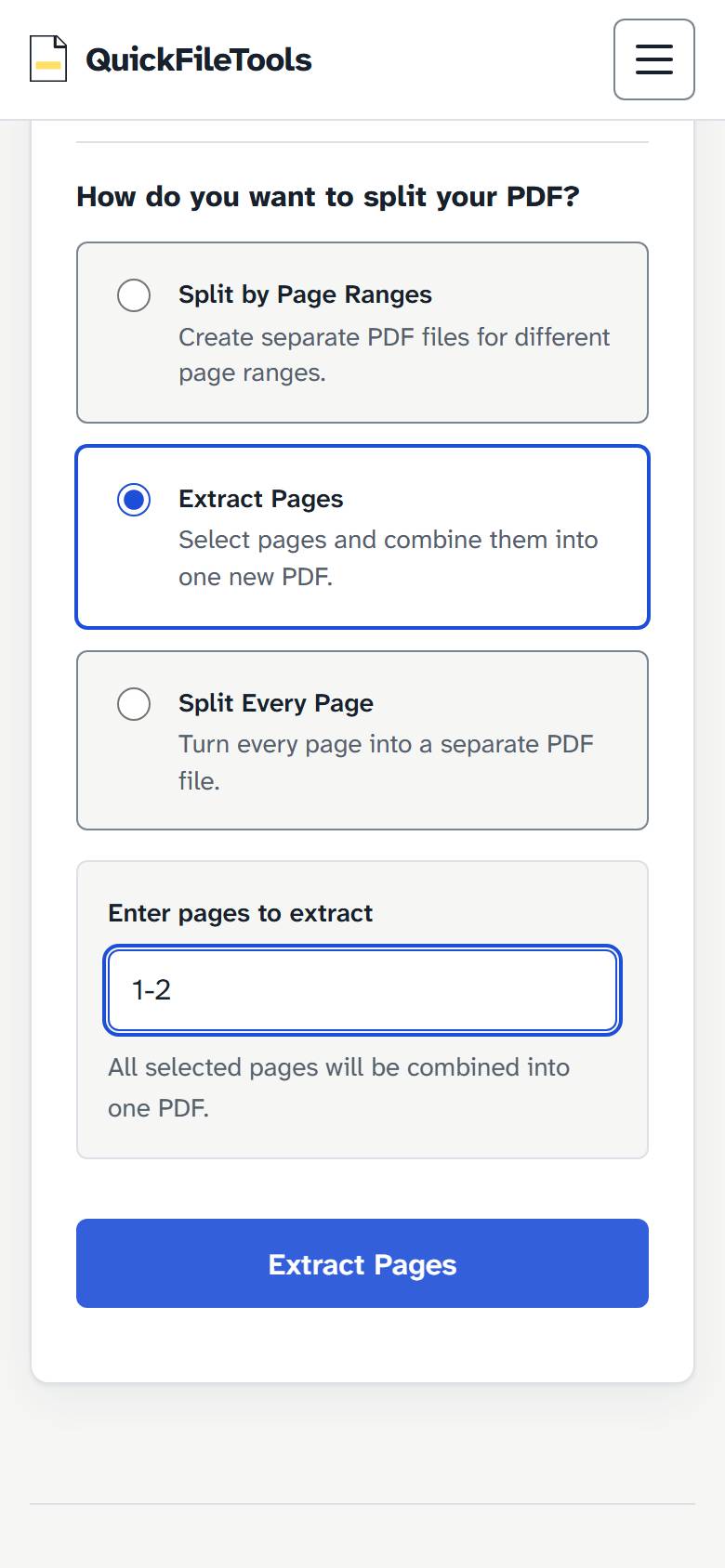
- The tool offers three ways to split your PDF:
- Split by Page Ranges: Create separate PDF files for different page ranges.
- Extract Pages: Select pages and combine them into one new PDF.
- Split Every Page: Turn every page into a separate PDF file.
- Choose "Extract Pages" to select specific pages and combine them into one new PDF, or "Split by Page Ranges" to divide the document into smaller files.
- Download the separated PDF files to your device.
Verification Before Submitting
Before submitting your compressed or split file to an official portal, perform these two final checks:
- Legibility check: Open the downloaded PDF in your viewer and zoom to 100%. Ensure numbers, small print, signatures, and stamps remain clearly readable.
- Exact byte check: Check the file properties on your device to confirm that the file size in kilobytes is strictly below the portal's stated ceiling.
Because both Compress PDF and Split PDF run client-side in your browser, your financial records, grades, and identity forms remain completely confidential on your own machine.