Sign a PDF Without Uploading
Signing contracts, lease agreements, permission slips, or school consent forms often prompts users to transmit private legal papers to third-party web services. This walkthrough explains how to apply your signature directly in your web browser while keeping your document safely stored on your device.
Why Sign in the Browser?
When you sign a PDF document, it frequently contains confidential personal data: home addresses, identification numbers, financial commitments, or employment details. Traditional online PDF editors receive your entire file on their servers before rendering it back to you.
QuickFileTools approaches document manipulation differently. With Sign PDF, JavaScript libraries (pdf-lib and PDF.js) run directly inside your browser tab. Your document is read from your local drive into local browser memory, modified on your computer, and saved back directly to your downloads folder. At no point in the workflow is the document transmitted across the network.
Important: Picture Signatures vs Certified Digital Signatures
Before signing, understand the technical and legal distinction between visual electronic signatures and cryptographic digital signatures:
- Electronic picture signature: A visual mark—drawn with a mouse or touchscreen, or placed as an image—embedded directly onto the PDF page.
- Certified digital signature (DSC / eSign): A cryptographic certificate issued by a licensed Certifying Authority (such as an Aadhaar-based eSign or a USB cryptographic token). It includes tamper-evident mathematical hashing verified by public key infrastructure.
A picture signature placed by Sign PDF is an electronic signature, not a certified digital signature. Whether a picture signature is accepted depends on the document and on who receives it; if unsure, ask them. If a government tender portal, court filing, statutory audit, or regulatory agency requires a certified digital signature certificate, you must use a hardware token or an authorized certifying authority.
Step 1: Open Your PDF in Sign PDF
Begin by loading your document into the signing tool.
- Navigate to Sign PDF.
- Select or drop your PDF document into the file box. The pages render directly on your device.
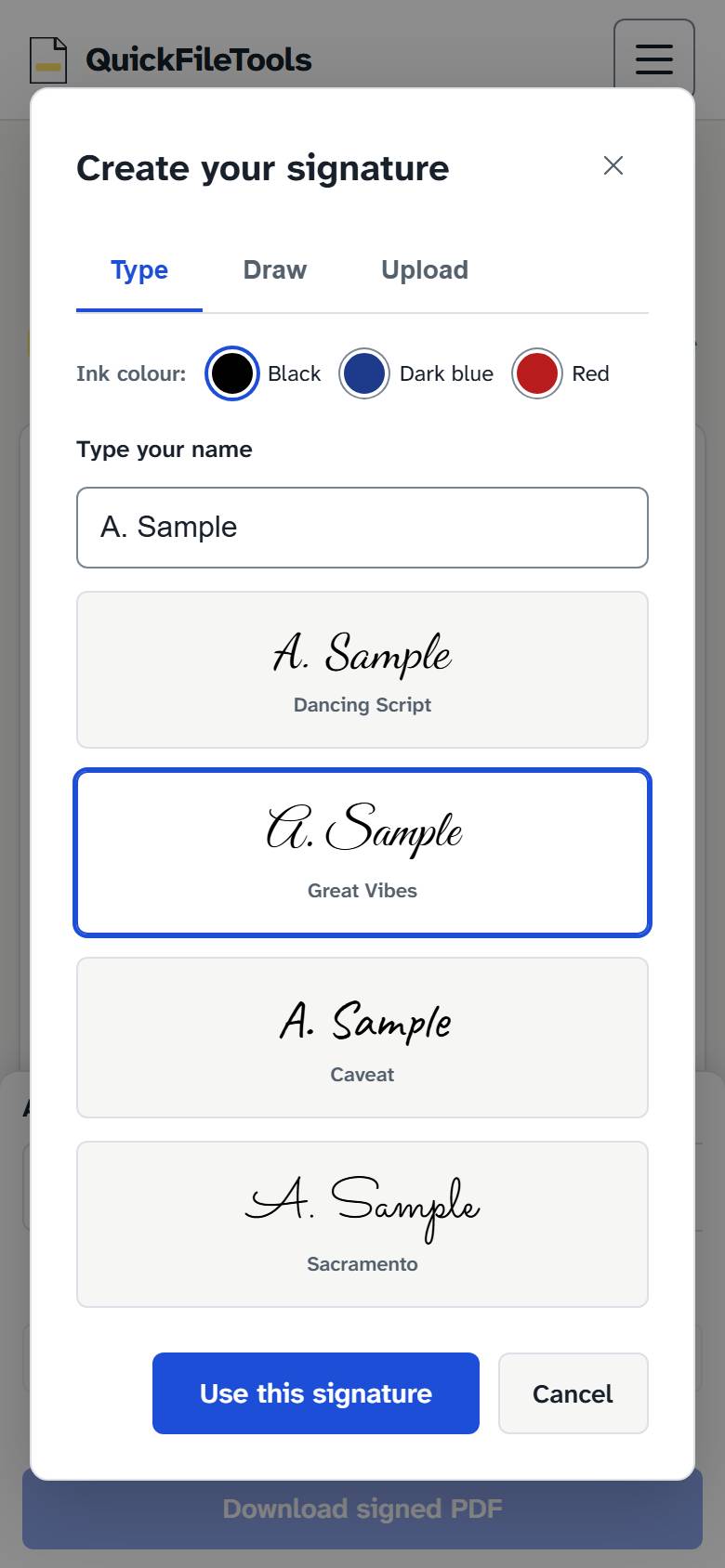
- When creating your signature, the dialog provides signature tabs in order: Type, Draw, and Upload:
- Type: Type your name and select a handwriting font style, with ink choices for Black, Dark blue, or Red.
- Draw: Sign inside the box using a mouse, trackpad, pen, or finger on mobile, with thin, medium, or thick stroke widths.
- Upload: Choose a signature image file (PNG, JPG, or WebP) from your device.
Step 2: Add Fields and Place Them on the Page
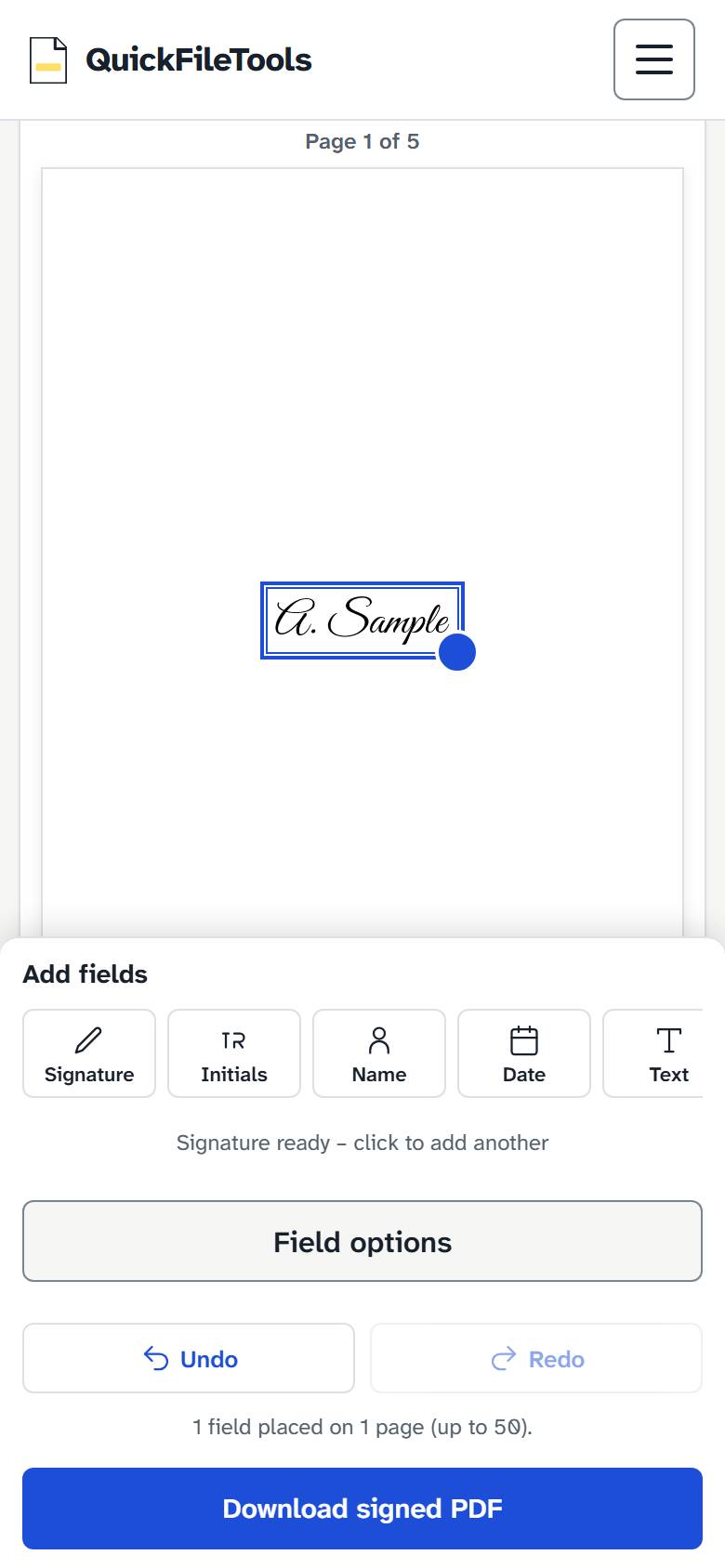
The "Add fields" section in the sidebar offers fields for Signature, Initials, Name, Date, Text, and Check mark.
- Click a field to add it to the page.
- Move and position the placed field on the document preview so that it sits neatly on the desired signature or date line.
- Use the field options panel to choose ink color, font size, or date formats, or choose which pages to place the field on (such as this page, all pages, or the last page).
- If you make a change you want to revert or reapply, use the Undo and Redo buttons in the toolbar.
Step 3: Download Your Signed PDF
When all fields are placed and verified, generate the completed PDF.
- Select "Download signed PDF".
- The browser embeds your signature and annotations into the PDF document using client-side JavaScript.
- Your completed PDF downloads directly to your device.
Because the PDF was never transferred outside your device, there is no waiting for server queues, no file expiration countdown, and zero exposure of confidential legal text.
Tips for Clean Signature Scans
If you choose to photograph a physical signature from paper and use the Upload tab, follow these recommendations:
- Sign using a dark blue or black ink pen on clean, unlined white paper.
- Ensure even lighting with no heavy shadows crossing the writing.
- Under the Upload tab, the tool automatically enables "Remove white background". Move the "Background strength" slider until the paper disappears and every stroke of your signature stays visible.