Convert a Bank Statement PDF to Excel Without Uploading It
Convert a bank statement PDF to Excel on your device without uploading it. Learn how to handle passwords, extract tables, and verify your numbers.
The short answer
A statement holds private details, so conversion on your own device is a sensible choice. Remove the password first if the file has one, convert it with our PDF to Excel converter, then compare the totals and closing balance with the PDF. In our test on a generated statement, every row landed in the right column.
Before you start
Bank statements contain private account balances and transaction records. Converting a bank statement PDF to Excel on your own device keeps those details off third-party servers.
The converter does not process password-protected files directly. If your statement has a password, the tool displays:
This PDF is password-protected. Remove the password first, then try again.
Before converting, remove the password using Unlock PDF. You can only remove the password if you already know it; the tool cannot guess or recover forgotten passwords. Our guide on removing a password from a PDF explains the steps.
The tool accepts PDF files up to 50 MB and 300 pages. It works for tables in English.
Convert the statement
Follow these steps to extract your statement into an Excel workbook:
- Open the tool and click Select PDF File to choose your document. The file is processed locally and is not uploaded.
- Review Worksheet options. The tool defaults to One sheet per table and keeps Join tables that continue on the next page ticked. This combines multi-page transaction tables into one worksheet.
- If your statement has selectable digital text, leave Read scanned pages (OCR) unticked.
- Click Convert to Excel.
- Once processing finishes, click Download Excel (.xlsx).
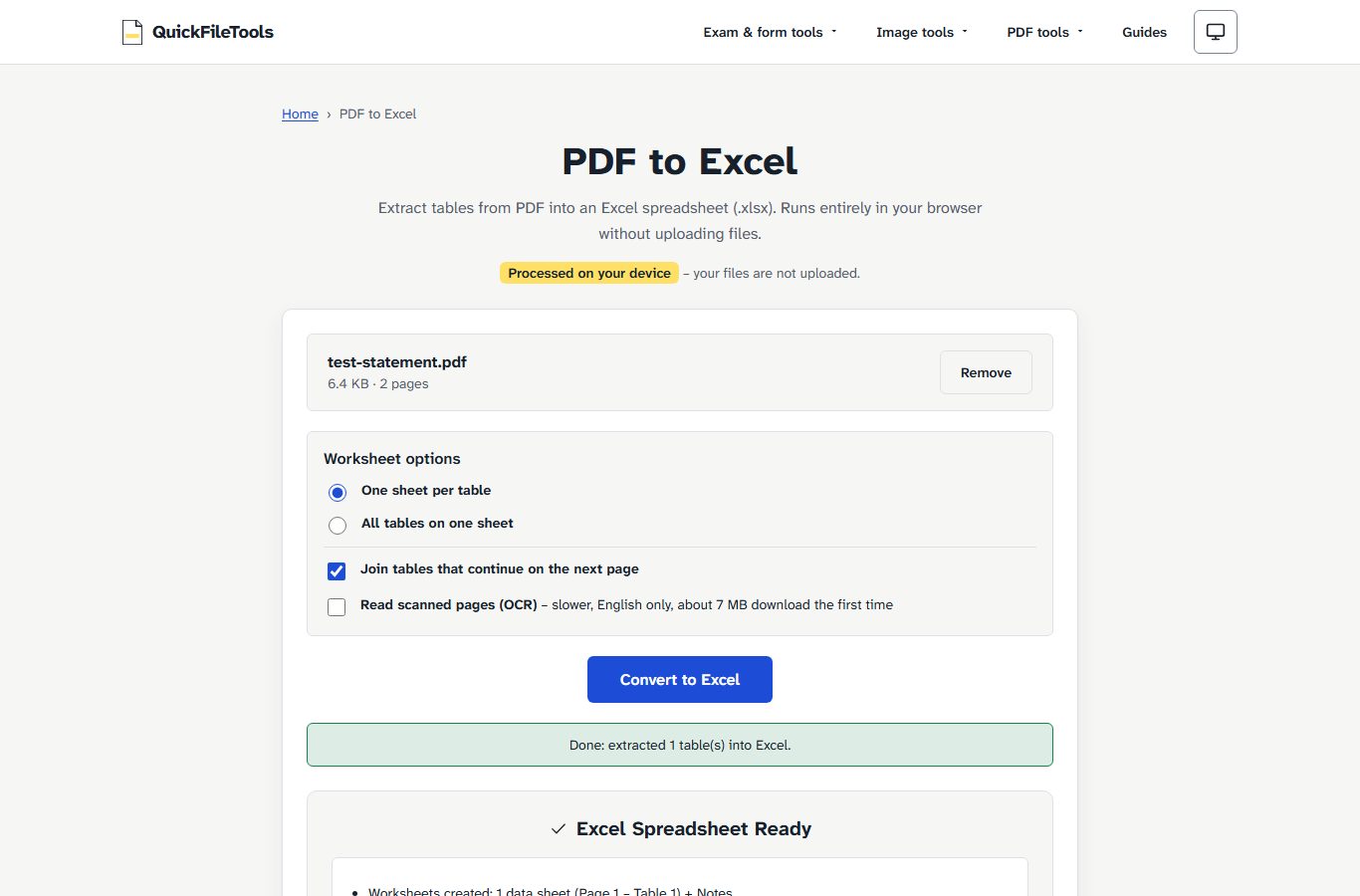
What came out in our test
We tested the tool on 3 November 2026 on the live site in Chromium and Firefox. Both browsers gave the same cells. We logged the browser's requests during the conversion and none sent data, so the file was not uploaded.
The input was a generated test statement from a fictional bank, not a real account. It had two pages, 45 transactions, columns Date, Narration, Debit, Credit, Balance, and amounts in Indian digit grouping (such as 1,25,700.00). We ran the conversion with default options.
The tool reported:
- Status:
Done: extracted 1 table(s) into Excel. - Summary:
Worksheets created: 1 data sheet (Page 1 – Table 1) + Notes,Joined table on page 1 with continuation on page 2.
| Test item | Input on test statement | Output in Excel |
|---|---|---|
| Rows | 45 transactions across 2 pages | All 45 rows arrived, header in columns A to E |
| Numbers | Indian grouping (1,25,700.00) |
Numeric 125700 (90 number cells, 0 formulas) |
| Columns | Debit and Credit | Correct column; opposite cell stayed empty |
| Balances | Marked with minus | Negative balances stayed negative |
| Dates | 01/10/2026 |
Stayed as text strings |
| Page join | Continued on page 2 | Repeated header at row 28 |
| Document title | Title above table | Page 1 title in row 1; page 2 title omitted |
Key observations from this test:
- Debit amounts landed under Debit and credit amounts under Credit. On row
01/10/2026(SALARY OR TRANSFER 1000), column D had 700, column E had 125700, and column C stayed empty. - Sorting or filtering by date needs converting the text dates to real dates in Excel first.
- The repeated header at row 28 should be deleted before you sort or total.
- A second sheet, the Notes sheet, lists the source file, page count, what was joined,
Indian digit grouping shown as standard thousands.andCheck important numbers against the PDF.
Check it before you trust it
Real statements differ, and only one generated layout was tested. Check the numbers against your original PDF:
- Count transactions: Check that the number of transactions matches the PDF.
- Sum columns: Add up Debit and Credit and compare with the statement's totals if it prints them.
- Check balance: Opening balance plus credits minus debits should equal the closing balance.
- Delete repeated headers: Delete repeated header rows at page joins (such as row 28 in our test).
- Convert dates: Convert the date column if you need to sort by date.
Do not use the numbers until these match.
If it does not work
Scanned pages instead of digital text
If pages are pictures rather than selectable text, the tool shows:
This PDF looks scanned – its pages are pictures, so there's no text to put in cells. Tick Read scanned pages (OCR) and convert again.
Tick Read scanned pages (OCR) to run optical character recognition. OCR works in English only, downloads about 7 MB the first time, processes up to 20 scanned pages per run, and is slower. Cells it is unsure about are marked yellow to check against the PDF. OCR was not run on a statement: we give no accuracy figure.
The columns or rows look wrong
We tested one layout only, with each transaction on one line. If your statement lays things out differently, cells may land in the wrong place. Check them against your PDF and correct them by hand.
Frequently asked questions
Are my statement files uploaded to any server?
No. Conversion runs in your browser. In our test, no request sent data. Your document and spreadsheets never leave your device.
Can the tool convert a password-protected statement?
Not directly. If a statement has a password, the tool displays: This PDF is password-protected. Remove the password first, then try again. Remove the password first using Unlock PDF with the password you already know.
Does OCR work on scanned bank statements?
The tool includes an OCR option for scanned pages in English. It downloads about 7 MB the first time, reads up to 20 scanned pages per run, and marks uncertain cells in yellow. OCR was not run on a statement in our test, so no accuracy figure is given.
Why did transaction dates remain as text?
In our test, dates stayed as text (01/10/2026). Convert the column to dates in Excel if you need to sort by date.
Convert your bank statement to Excel
You can convert your bank statement to Excel directly in your browser. All processing happens locally, so your files stay on your device without being uploaded. Only one generated layout was tested: always check the extracted totals and closing balance against your PDF before using the data.