PDF to JPG for Form Uploads: Choose the Right Quality
Read the form's limit first. Convert the page with Standard (150 DPI), check the KB and that the text is readable, and only change quality if you need to. In our test, Standard gave about 190–215 KB for one A4 page, High several times that, and Small about 50 KB.
The short answer
When you need to convert PDF to JPG for form upload, you must meet two conditions: the file size in KB must fit within the form's ceiling, and the text on the page must stay clear enough to read.
Our PDF to JPG converter processes pages directly in your browser. Standard (150 DPI) is selected by default. In our tests, Standard produced about 190–215 KB for a single A4 page.
If the converted file is too large for your form, you can switch to Small (72 DPI), provided the text remains legible. If your document has small print or fine lines that look indistinct, choose High (300 DPI). Always check the exact pixel dimensions and KB shown next to your file on the result screen before uploading.
Before you convert
Read your form's instructions before changing any settings. Look for three details: the accepted file format, the file size limit in KB, and any image dimensions in pixels.
Remember that pixels and KB are different limits. Pixels measure the width and height of an image, while KB measures the storage space the file uses. A file can match a form's pixel requirement while exceeding its KB limit, or fit within the allowed KB while having the wrong pixel dimensions.
Check which page your form requires. If your form has one slot, convert only the page it asks for. If the form asks for a PDF containing specific pages instead of an image, use Split PDF instead.
Convert the page
Follow these steps to convert your PDF page:
- Click
Select PDF Fileand choose your document. The tool accepts files up to 200 MB and 300 pages. - Under page selection, choose
All pagesorPage range.All pagesis selected by default. If your form wants one page, choosePage rangeand enter its number, such as2. You can also enter2-3or1-3, 5. - Under format, choose
JPGorPNG.JPGis the default format. - Select your quality setting.
Standard (150 DPI)is selected by default. You can also pickSmall (72 DPI)orHigh (300 DPI). Output is capped at 40 megapixels per page. - Click
Convert to JPG. The browser converts each page into an image. - Review the result list. The tool displays the pixels and KB next to each file.
- Click
Download JPGto save your image. Several pages also offerDownload All (ZIP). The file keeps your PDF's name and adds the page number, such astest-certificate-page-1.jpg. If you need to process another document, clickConvert another PDF.
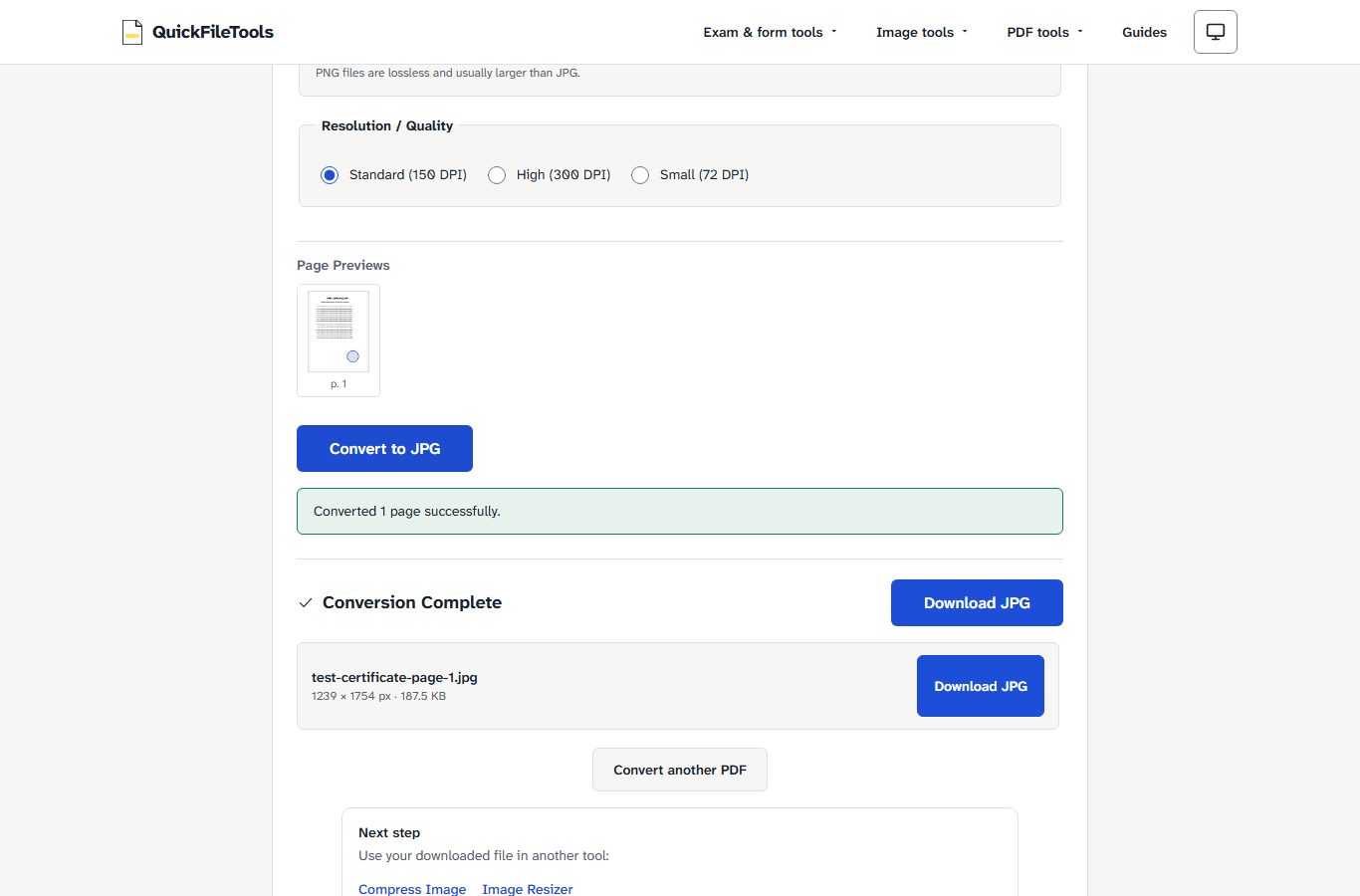
What each quality gave us
Inputs were generated test PDFs: a one-page A4 test certificate (text and a coloured circle) and a test PDF with photos. No real document was used. First page, JPG output (the PDF with photos came out up to one pixel different):
| Quality label | Pixels (A4) | Certificate, Chromium / Firefox | PDF with photos, Chromium / Firefox |
|---|---|---|---|
| Small (72 DPI) | 595 × 842 | 52.3 / 56.5 KB | 50.9 / 54.4 KB |
| Standard (150 DPI) | 1239 × 1754 | 187.5 / 210.0 KB | 199.4 / 215.6 KB |
| High (300 DPI) | 2479 × 3508 | 564.4 / 766.9 KB | 1278.0 / 1576.2 KB |
These test numbers demonstrate three lessons:
- The same page and setting gives a different KB in another browser and for different content. So check your own result; the tool shows pixels and KB next to each file. In our tests, the certificate at Standard quality gave 187.5 KB in Chromium and 210.0 KB in Firefox. For the PDF with photos at High quality, Chromium generated 1278.0 KB while Firefox produced 1576.2 KB.
- High is about 3 to 7 times Standard here, not a fixed ratio. On the certificate, High was roughly 3 to 4 times Standard. On the PDF with photos, it was roughly 6 to 7 times.
- Pixels are the DPI setting applied to the page size. A4 at 300 DPI is 2479 × 3508 in the result. At 150 DPI, that page is 1239 × 1754 pixels, and at 72 DPI, it is 595 × 842 pixels.
If the file is still wrong
When your converted JPG does not match the requirements of your upload form, use this decision list:
- File over the limit: try
Small (72 DPI)only if the text stays readable when zoomed in; otherwise keep Standard and use Compress Image with its target size. - Text unreadable: go up one quality and check the limit again. If
Small (72 DPI)makes text blurry, switch toStandard (150 DPI). If fine print is still hard to read, selectHigh (300 DPI)and check the KB again. - Form asks for a minimum KB as well: compare your result with both numbers on your form.
- Password-protected PDF: if your file is encrypted, the tool shows:
This PDF is password-protected. Remove the password and try again.Use Unlock PDF, only with a password you already know.
What we tested
We measured these conversions on 3 November 2026 using the live PDF to JPG tool. All tests ran in Chromium and Firefox using a generated test certificate and a generated test PDF with photos.
We logged the browser's requests during the conversions and none sent data, so the file was not uploaded.
We tested no portal and do not promise a portal will accept a file. Compare your results with your own form's rules.
Frequently asked questions
Can I select text in the converted JPG?
No. Text in the JPG can no longer be selected: it is a picture.
What should I do if my form has one slot?
If your form has one slot, convert only the page it asks for. Use Page range (such as 2-3, or 1-3, 5) to convert only the page you need.
What are the limits on PDF file size and page count?
The tool supports PDF files up to 200 MB and 300 pages. Output is capped at 40 megapixels per page to protect device memory.
Why do Chromium and Firefox produce different KB sizes?
Each browser saves JPG files with its own encoder. The same page and setting gives a different KB in another browser, so check your own result on the screen.
Convert your PDF to JPG for upload
Read your form's limit first, pick the quality that keeps your text clear, and convert your PDF to JPG in your browser. All conversion happens locally on your device, so your documents are never uploaded.