How to Rotate a PDF Permanently So It Stays Turned
A rotate button in a PDF reader may only change your view until you save a new copy. To make it stick, turn the pages and download a new PDF. In our test the new file opened with the same rotation, and turning it back restored the original angles.
Why the rotation did not stick
A rotate button in a reader can change only how the page looks on your screen. If it did, the file itself has not changed, so the page can open sideways again the next time, or for the person you send it to. Not every reader works this way, so the simple test is to reopen the file and look.
The fix is a new file with the rotation saved in it.
Rotate and save the PDF
The Rotate PDF tool takes one file, up to 100 MB and 500 pages. It makes a new file, and the one you chose is not changed.
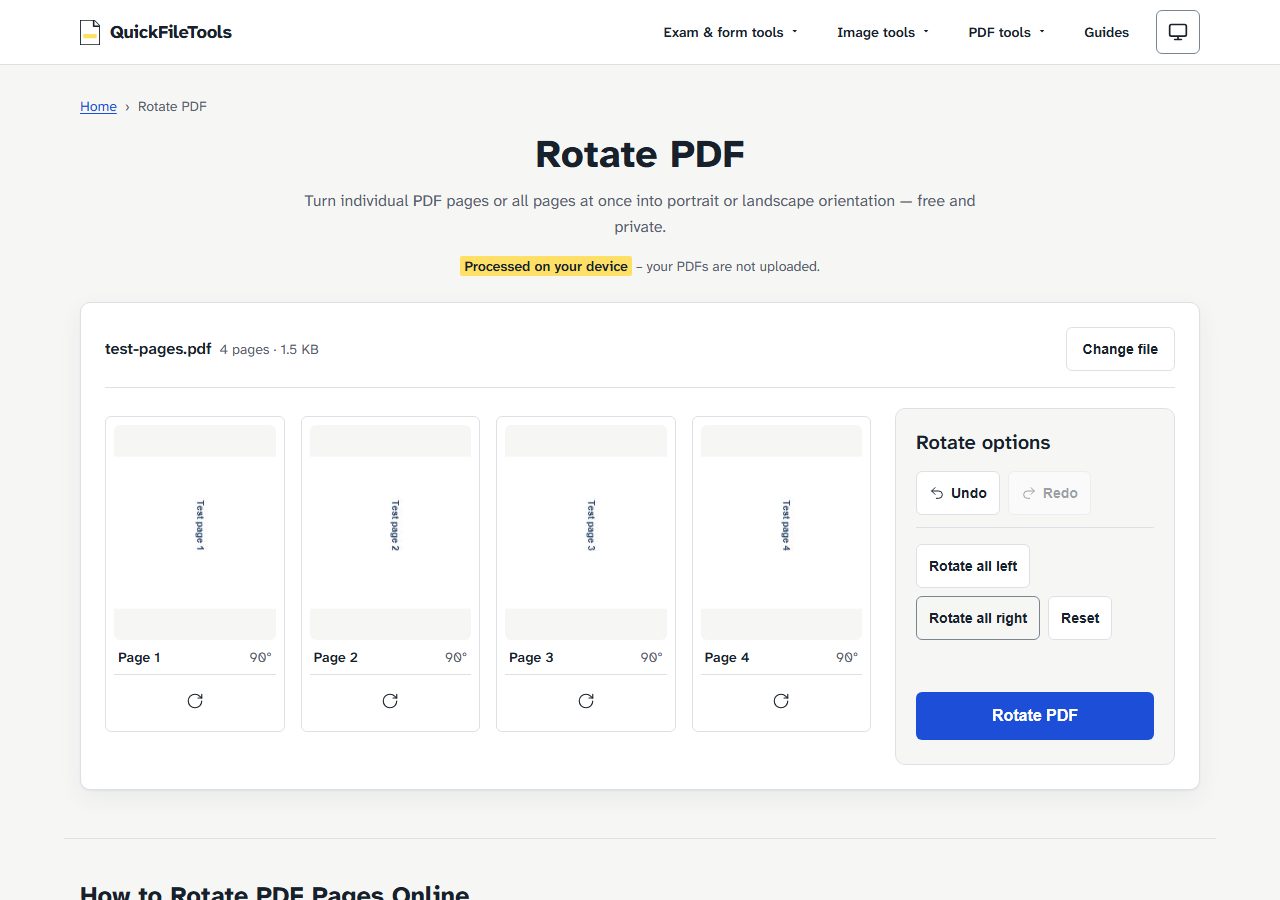
- Choose your PDF. Each page appears as a card with a small picture of the page.
- To turn one page, use the rotate button on its card. Each press turns it clockwise.
- To turn every page, use
Rotate all rightorRotate all left. - If you make a mistake, use
UndoandRedo, orResetto clear your turns. - Select
Rotate PDF, thenDownload.
The new file name ends with -rotated, for example pages-mixed-rotation-rotated.pdf. Use Change file or Start over to work on a different PDF.
Turn one page or all of them
Rotate all right adds 90 degrees to each page's own angle. It does not make every page the same. In our test, a page already at 90 degrees went to 180.
So if only some pages are sideways, turn those pages one by one.
Go by the small picture, not by the number on the card. That number shows the turn you have added, not the page's angle in the file. After Rotate all right on our test file, all four cards showed 90°, while the saved pages were at 90, 180, 90 and 0.
What we measured
We ran these tests on 3 November 2026 on the live tool, in Chromium and Firefox. The inputs were generated test PDFs, and no real document was used. We read the angles from the downloaded file, not from the screen.
| Test | Page angles before | Page angles after | File size |
|---|---|---|---|
4 pages, Rotate all right |
0, 90, 0, 270 | 90, 180, 90, 0 | 1,458 to 1,462 bytes |
That new file reopened, Rotate all left |
90, 180, 90, 0 | 0, 90, 0, 270 (the original angles) | not recorded |
| 10 pages, page 3 only | all 0 | page 3 is 90, the rest stay 0 | 2,607 to 2,624 bytes |
The saved file keeps the rotation: reopening it showed the new angles. Turning it back with Rotate all left restored the originals.
File size hardly changed, by a few bytes, because pages are copied and not redrawn. The tool's page says text and image quality do not change.
Nothing was sent to a server during the test: the browser made no upload request.
Before you rotate
Forms and links. Bookmarks, links, form fields and tags may not be kept. If the PDF is a form you still have to fill in, fill it first or keep the original.
Passwords. A password-protected PDF shows this message: This PDF could not be opened. It may be damaged or password protected. Remove the password first with Unlock PDF, only with a password you already know.
Other jobs. To change the order of pages, use Organize PDF. To join files, see our guide to merging PDFs without uploading.
Frequently asked questions
Does rotating reduce PDF quality?
The tool's page says no: pages are copied and not redrawn, so text and image quality do not change. In our test the file size hardly changed.
Can I rotate only some pages?
Yes. In our test we turned only page 3 of 10, and the other pages stayed at 0 in the saved file.
Why does a page look wrong after Rotate all right?
The button adds 90 degrees to each page's own angle. A page that was already turned goes further. Use Undo, then turn the sideways pages one by one.
Can I rotate a PDF that has a password?
Not until the password is removed. Use Unlock PDF, only with a password you already know.
Save your rotated PDF
Check the small pictures, then turn your pages and save a new PDF.