How to Merge PDF Files Without Uploading Them
To merge PDF files without uploading them, select your documents in Merge PDF, arrange them in the sequence you need, keep Original Quality selected, click the Merge button, and download your single combined PDF. The merging process runs directly inside your web browser on your device, so your files are never transmitted to an external server.
Before you start
Merging PDF documents locally in your browser keeps your files private on your device. The tool requires no account and runs without sending files across the network.
Before you begin, note these points:
- Two or more files: You need at least two PDF files to merge. With only one file loaded, the button stays off.
- List order: The output document follows the order of your list. Check the sequence before merging.
- Memory limits: There is no fixed file-count or file-size limit, but very large files depend on your device's memory.
- Password protection: Password-protected files cannot be merged directly; remove any password before adding the file.
How to merge the files
Follow these steps to combine your documents directly on your device:
- Open the tool to combine your PDFs in the browser.
- Select your PDF documents from your device. You need two or more files to start.
- Review your file list. The output document follows this sequence. Use the up arrow or down arrow on each file, or drag the files into position. Click
Removeon any unwanted file, add more with+ Add More PDFs, or reset the list withClear All. - Under
Choose output option, selectOriginal QualityorCompressed.Original Qualitykeeps the original PDF quality, selectable text, links and graphics.Compressedcreates a smaller PDF for email, sharing and uploading, though pages may be converted to optimized images. - Click the merge button. With three files loaded, the button says
Merge 3 PDFs. - When the merge finishes, the page shows
PDFs merged successfullyand displays the input and output size. - Click
Download Merged PDFto save your combined document, or clickMerge more PDFsto start again. - Review the
Next stepbox if you need further adjustments. If you want to reorder or remove single pages after merging, use Organize PDF. To go the other way, see how to split a PDF into pages or ranges.
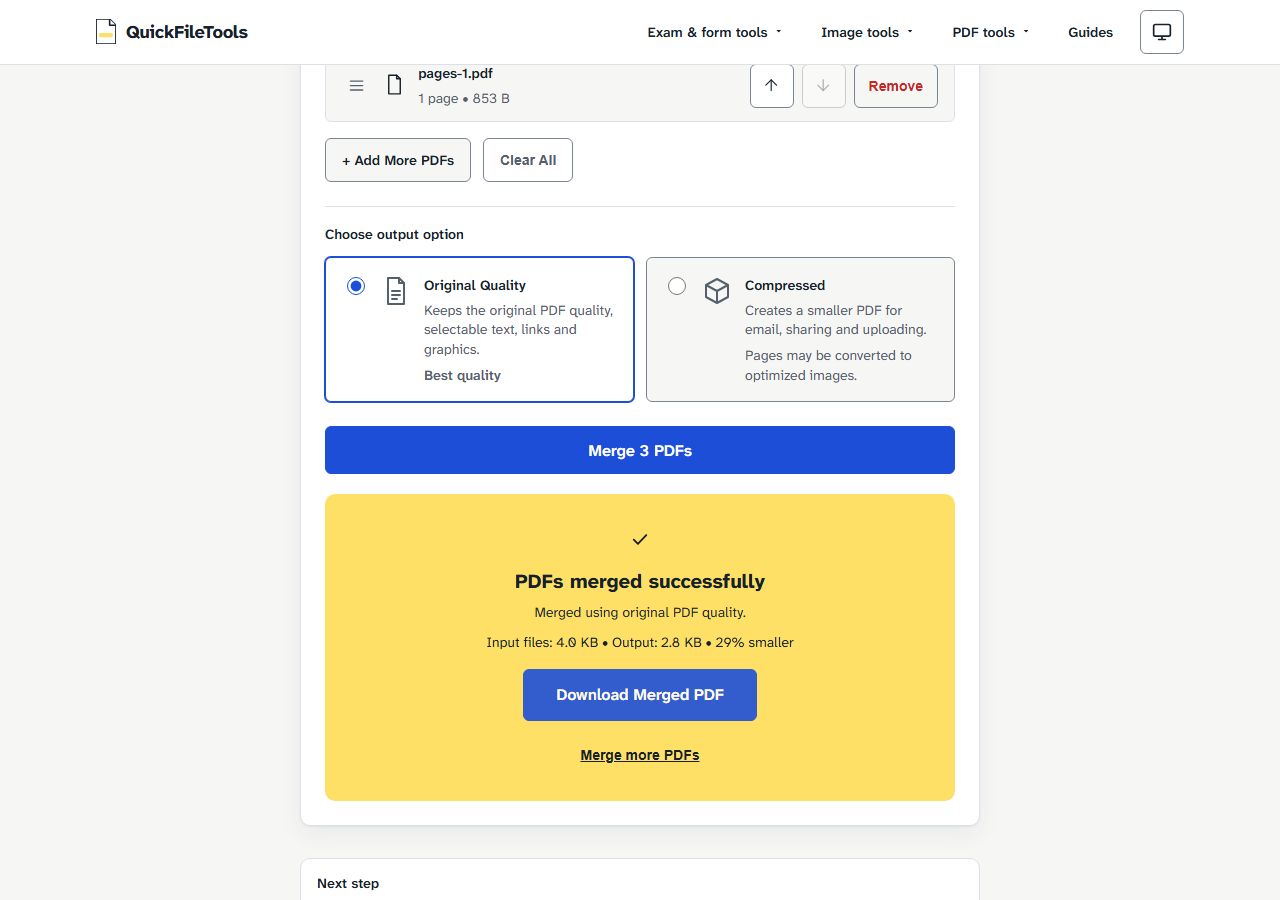
Original Quality or Compressed
Under Choose output option, the tool offers two output choices:
Original Quality
Original Quality copies existing pages into the new document. The page describes it as: "Keeps the original PDF quality, selectable text, links and graphics."
Because Original Quality copies pages rather than re-rendering them, selectable text stays selectable. Choose Original Quality for contracts, invoices, or any file where you must search or copy text.
Compressed
Compressed creates a smaller file for sharing. The page describes it as: "Creates a smaller PDF for email, sharing and uploading." and "Pages may be converted to optimized images."
Because pages may turn into images, selectable text and links may be lost. Compressed is also not always smaller: on our small text-only test files it made no difference. When the normal merged file is smaller, the tool keeps that one and says The original merged PDF was already smaller, so we kept the smaller file without reducing quality.
If the merged file is still too big after downloading, you can shrink it with Compress PDF.
What we tested
We tested the Merge PDF tool on the live site on 1 November 2026 with automated browser runs in Chromium and Firefox. Our tests used small test files we made, with no real data:
five-page.pdf(5 pages, 0.6 KB)pages-10.pdf(10 pages, 2.5 KB)pages-1.pdf(1 page, 0.8 KB)
Total input size was 4.0 KB across 16 pages.
| Option | Output name | Pages | Page says |
|---|---|---|---|
| Original Quality | QuickFileTools-Merged.pdf |
16 (5 + 10 + 1) | Input files: 4.0 KB, Output: 2.8 KB, 29% smaller |
| Compressed | QuickFileTools-Merged-Compressed.pdf |
16 | the same 2.8 KB |
Our test results:
- The page count of both outputs was read back with a second PDF library (pdf-lib), confirming 16 pages.
- Both Chromium and Firefox gave the same results.
- During the merges the page sent no file: apart from analytics, it made no POST or other request that could carry one.
- Compressed gave no smaller file here. These were tiny files, so do not expect the same size change on yours.
To verify that your browser sends no file bytes across the network, read our guide on how to check that a tool does not upload files.
If the merge does not work
If your merge does not work, check these three items:
One file only
The tool requires two or more files. With one file only, the button says Add another PDF and is off until you add a second document.
Password-protected file
Password-protected PDFs are not supported. If an encrypted file is added, the button says Password-protected PDFs are not supported and is off, until that file is removed. A password-protected file must be unlocked first using Unlock PDF.
Device memory
There is no fixed file-size or file-count limit, but very large files depend on your device's memory. On too little memory while compressing, the page asks you to try fewer files.
Frequently asked questions
Are my PDF files uploaded to a server?
No. The merge runs in your browser on your device. In our tests in Chromium and Firefox, the page sent no file data.
Can I merge password-protected PDF files?
No. Password-protected PDFs are not supported. If you add one, the button says Password-protected PDFs are not supported and is off until you remove the file.
Why is Compressed not always smaller than Original Quality?
It depends on the file: our small text-only test files came out no smaller. When the normal merged file is smaller, the tool keeps that file and says The original merged PDF was already smaller, so we kept the smaller file without reducing quality.
How many PDF files can I merge?
There is no fixed file-count limit. Very large files depend on your device's memory. On too little memory while compressing, the page asks you to try fewer files.
Combine your PDFs on your device
When you need to join multiple documents into one file, you can merge PDF files on your device without creating an account. Choose Original Quality to keep your text selectable, arrange your file sequence, and keep full control because files stay on your device.