How to Split a PDF Into Separate Pages or Page Ranges
To split a PDF, select your document in Split PDF and choose Split Every Page, Split by Page Ranges, or Extract Pages. Type your page numbers or ranges if asked, click the button, and then Download. Split pages arrive together in a ZIP archive, while extracted pages arrive as one PDF. Everything runs locally in your browser.
Before you start
Before splitting your file, keep these requirements and limits in mind:
- File size limit: The tool accepts one file at a time, up to 50 MB. A bigger file gets:
Please select a PDF smaller than 50 MB. - Original file safety: Your original file is not changed. The tool creates new files whose names begin with the name of your file. Pages are copied without re-rendering or compression, so text, images and formatting stay the same.
- Passwords: A password-protected file cannot be processed directly. If you select one, the tool displays:
Password-protected PDFs are not supported.A password-protected file must be unlocked first. - Privacy: The tool needs no account. The file is processed in the browser and not uploaded.
- Portal limits: If you are splitting a document because of a portal's size limit, you can also see our guide on how to reduce PDF size for upload.
How to split the file
Follow these steps to split your document:
- Select your PDF: To split your PDF in the browser, open the tool and choose your document. You can select one file up to 50 MB.
- Choose an option: Select
Split by Page Ranges,Extract Pages, orSplit Every Page. - Type pages or ranges if asked:
- For
Split by Page Ranges, the box label isEnter page ranges. The example in the box is1-3, 4-6, 8, and the help text states: "Each range will become a separate PDF." - For
Extract Pages, the box label isEnter pages to extract. The example in the box is1, 3, 5-7, and the help text states: "All selected pages will be combined into one PDF." - For
Split Every Page, there is no box.
- For
- Click the button: Its text follows your chosen option, as the table below shows.
- Download your files: When processing finishes, you see:
Your PDF files are ready. Click Download to save them.Nothing is saved until you pressDownload. You can clickSplit Another PDFto process another file. TheNext stepbox also offers Compress PDF or putting files together again with Merge PDF. We also have a guide on merging PDFs without uploading them.
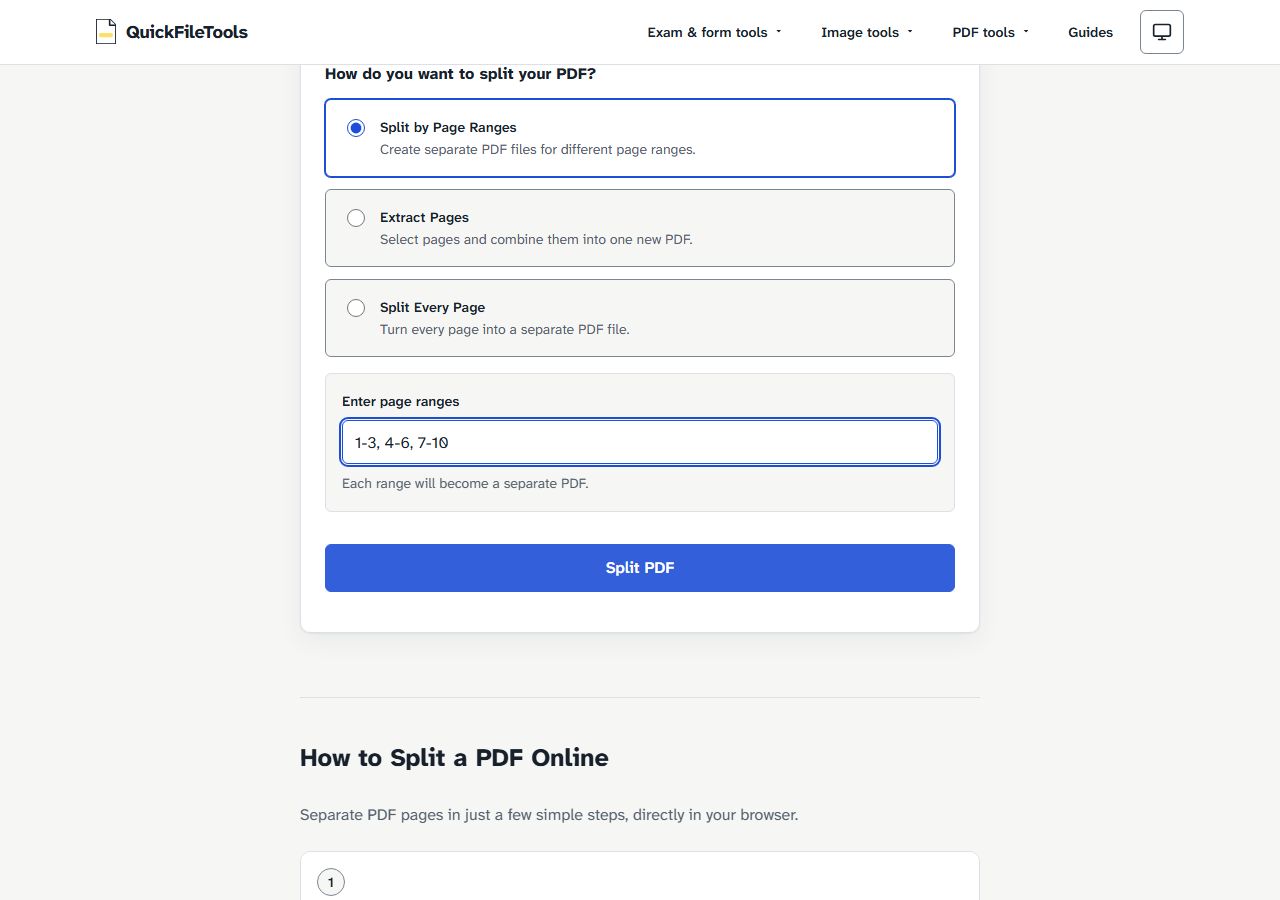
Which option to choose
The tool provides three splitting modes:
| Option | Button says | Box label | Example in the box | Output format |
|---|---|---|---|---|
Split by Page Ranges |
Split PDF |
Enter page ranges |
1-3, 4-6, 8 |
ZIP archive with one PDF per range |
Extract Pages |
Extract Pages |
Enter pages to extract |
1, 3, 5-7 |
Single PDF with all selected pages |
Split Every Page |
Split Every Page |
no box | none | ZIP archive with one PDF per page |
- Split by Page Ranges: Use this to divide a large document into sections. Each range becomes its own separate PDF file. All resulting PDFs download together inside a ZIP archive.
- Extract Pages: Use this to pull out specific pages, such as an invoice or signature sheet. QuickFileTools combines only your selected pages into one new PDF file.
- Split Every Page: Use this when you need every single page saved as its own document. All individual single-page PDFs download together in a ZIP file.
The output name begins with the name of your file. If you prefer to pick pages by looking at them rather than typing page numbers into a box, use Extract PDF Pages.
How to type pages and ranges
When entering numbers for Split by Page Ranges or Extract Pages, follow these rules:
- Use commas to separate distinct pages or ranges, such as
1, 3, 5-7. - Use a hyphen between the start and end of a range, such as
1-3, 4-6, 7-10. - Always write the lower page number first.
If you make a mistake in the box, the tool shows an exact error message:
- If you enter a range backwards, such as
5-3, the tool shows:Invalid range 5-3. - If you enter non-numeric text, such as
abc, the tool shows:Invalid range "abc". - If you enter page numbers that do not exist, such as
11-12on a 10-page file, the tool shows:Page 11 is invalid. Your PDF contains 10 pages.
What we tested
We tested the live site on 1 November 2026 with automated browser runs in Chromium and Firefox.
The test used pages-10.pdf, a 10-page test file we made, 2.5 KB in size, with no real data. We tested all three options:
| Option | Typed | Output | Inside |
|---|---|---|---|
| Split Every Page | none | pages-10-all-pages.zip (8.2 KB) |
10 PDFs, pages-10-page-1.pdf to pages-10-page-10.pdf, 1 page each |
| Split by Page Ranges | 1-3, 4-6, 7-10 |
pages-10-split.zip (2.9 KB) |
pages-10-pages-1-3.pdf 3 pages, pages-10-pages-4-6.pdf 3 pages, pages-10-pages-7-10.pdf 4 pages |
| Extract Pages | 1, 3, 5-7 |
pages-10-extracted.pdf (1.6 KB) |
1 PDF, 5 pages |
All page counts were read back with a second PDF library (pdf-lib). Both Chromium and Firefox gave the same results.
The tool processes your document directly in your browser without uploading files to a server. To test your browser and verify this local processing yourself, read our guide on how to check a tool does not upload files.
Frequently asked questions
Does splitting a PDF reduce its quality?
No. The pages are copied without re-rendering or compression, so text, images and formatting stay the same.
What happens to the original file?
Your original file is not changed. The output name begins with the name of your file.
What is the maximum file size allowed?
You can split one file at a time, up to 50 MB. If you choose a larger file, the tool displays: Please select a PDF smaller than 50 MB.
Can I split a password-protected PDF?
No. Password-protected PDFs are not supported. If you select an encrypted file, the tool shows: Password-protected PDFs are not supported.
Split your PDF in your browser
You can divide long documents into custom ranges, separate every page, or extract selected pages in a few clicks. Open Split PDF to process your documents locally on your device without uploading files or creating an account.