How to Batch Convert Multiple PNGs to JPG and Download as ZIP
To batch convert PNGs to JPG, drop your files into the converter, pick a JPG quality preset and background colour, click convert, and download the finished images as a ZIP. You can convert up to 10 PNGs at once directly in your web browser without uploading any files to an external server.
How to batch convert PNGs to JPG in four steps
Converting files one by one takes time. Batch conversion processes several images together and bundles them into a single archive.
- Add your PNG images. Drop your files into the drop area, or pick them with the file chooser. You can convert up to 10 PNG files at once, each up to 25 MB. When 10 are chosen, the drop area displays
Maximum of 10 images reached. If you choose more, the tool shows:Only 10 images can be converted at once, so some files were skipped.Only the first 10 are kept. - Choose your batch settings. Under
JPG quality, adjust the slider between 40 and 100, or choose a preset:Small 70,Balanced 85(default),High 92, orMax 100. One setting applies to the whole batch. UnderBackground for transparent areas, pick White (default), Black, Light grey, or Custom. The tool notes: "JPG can't store transparency, so see-through areas get this solid colour." - Run the conversion. Click
Convert 10 images to JPG. The number matches your file list, and the button showsConverting…while busy. Each row displaysold size → new size JPG, a % badge, an individual download button, and a remove (×) button. - Download your files. The result bar shows
10 JPGs ready!andDownload all (ZIP). The ZIP is namedquickfiletools-jpg-images.zip. Each file keeps its name with.pngchanged to.jpg(for example,screenshot-home.pngbecomesscreenshot-home.jpg). With only 1 file, the button downloads that JPG directly without creating a ZIP.
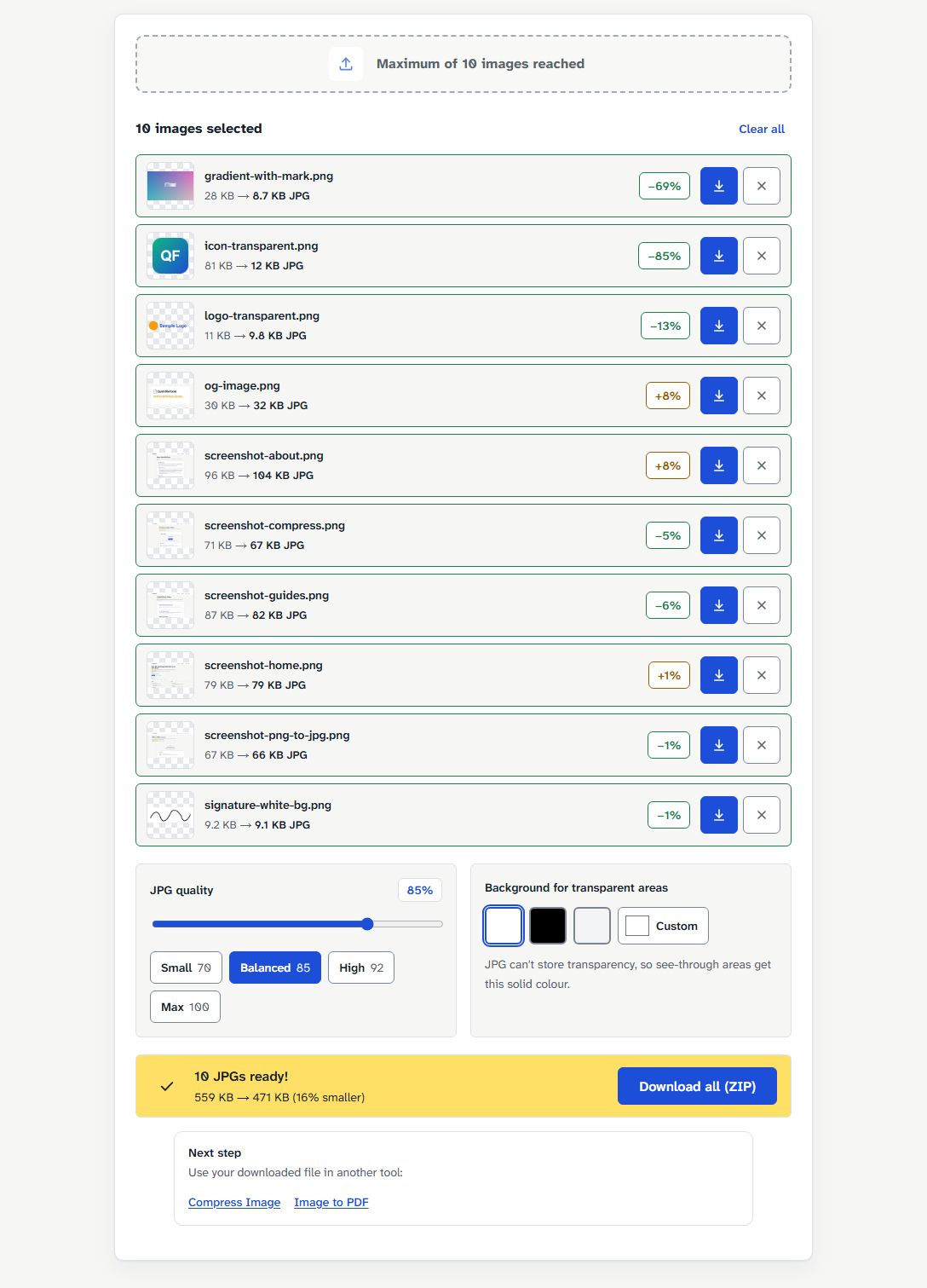
What happened when we tested a batch of 10 real files
We tested 10 real PNG files (559 KB total) on 27 October 2026 on quickfiletools.in using Playwright on a desktop PC at default settings (quality 85, white background) in Chromium and Firefox.
The test set included 5 page screenshots at 1366×768, the site's 1200×630 share graphic, a 600×200 signature on white, an 800×500 gradient with a mark, and two transparent graphics (a 600×200 logo and a 512×512 app icon).
| File | PNG | JPG (Chromium) | JPG (Firefox) |
|---|---|---|---|
| screenshot-home | 78.9 KB | 79.3 KB | 87.8 KB |
| screenshot-guides | 87.2 KB | 82.2 KB | 89.5 KB |
| screenshot-compress | 71.1 KB | 67.3 KB | 75.0 KB |
| screenshot-png-to-jpg | 66.9 KB | 66.4 KB | 74.4 KB |
| screenshot-about | 95.8 KB | 103.7 KB | 111.0 KB |
| logo-transparent | 11.3 KB | 9.8 KB | 10.5 KB |
| icon-transparent | 80.6 KB | 12.3 KB | 14.1 KB |
| og-image (share graphic) | 30.2 KB | 32.4 KB | 40.5 KB |
| signature-white-bg | 9.2 KB | 9.1 KB | 9.9 KB |
| gradient-with-mark | 27.9 KB | 8.7 KB | 12.6 KB |
| Total | 559 KB | 471 KB (16% smaller) | 525 KB (6% smaller) |
Key observations from our test:
- Speed: Time from clicking Convert to JPG to
10 JPGs ready!was 1.1 seconds in Chromium and 1.3 seconds in Firefox on our desktop PC. We did not measure phones, so conversion times on mobile devices will vary. - ZIP size: The ZIP was 472 KB in Chromium, about the same as the 471 KB of JPGs inside it. The tool stores the JPGs in the ZIP as they are; it does not shrink them further.
- Privacy: During conversion and ZIP download, the page sent 0 upload requests. We confirmed no POST or PUT requests in either browser.
- File limits: Choosing 11 files kept the first 10 and showed
Only 10 images can be converted at once, so some files were skipped.
Why did some files get bigger while others shrank?
The data shows that photos, gradients, and graphics with large smooth areas shrink a lot. In our test, gradient-with-mark shrank by 69% (27.9 KB to 8.7 KB) and icon-transparent shrank by 85% (80.6 KB to 12.3 KB).
Screenshots and flat graphics with text can come out the same size or bigger as JPG. In Chromium, 3 of 10 files got bigger: screenshot-home, screenshot-about, and og-image. PNG stores flat colour and sharp lines very efficiently without any loss, while JPG is built for smooth photographic detail and spends extra bytes on hard edges such as text. Read why some files get bigger as JPG for the full explanation.
Transparent areas also change. Because JPG cannot store transparency, see-through pixels receive a solid fill. Check background colours for transparent areas to pick the right fill colour.
If file weight matters, lower the quality preset as explained in our guide on which JPG quality setting to pick, or run output files through Compress Image.
How to convert more than 10 PNG files
To convert 20, 50, or more images, process them in groups of 10:
- Convert your first 10 PNG files.
- Click
Download all (ZIP)to savequickfiletools-jpg-images.zip. - Click
Clear allto reset the list. - Add the next 10 images and repeat.
Every batch downloads with the same name, quickfiletools-jpg-images.zip, so rename each ZIP or unzip them all into one folder. The tool does not merge ZIP files together.
Other batch jobs on this site
QuickFileTools offers other browser-based batch tools:
- Image Converter: Converts up to 10 JPG, PNG, WebP, or AVIF images. You pick one output format for the batch (
Convert to: JPG, PNG or WebP, with WebP preselected). Each file has its own Download button and there is no ZIP download option. - Compress Image: Batch compresses up to 5 images to reduce kilobyte size for online forms or email attachments.
- Image to PDF: Combines up to 50 images into a single PDF document in your browser.
When not to batch convert PNG to JPG
Batch conversion applies one setting to the whole list. Avoid batch conversion in these situations:
- Files need different settings: If some images need a white background and others need black, or require different quality settings, convert them in separate batches.
- You need transparency: JPG discards alpha transparency permanently. Keep icons and logos as PNG or WebP if they need transparent backgrounds.
The tool processes PNG files only, up to 10 images at once, and up to 25 MB per file.
FAQ
Is there a limit on how many PNG files I can convert at once?
Yes. You can convert up to 10 PNG files at once, and each file can be up to 25 MB. Choosing 11 or more files keeps the first 10 and shows: Only 10 images can be converted at once, so some files were skipped.
Are my files uploaded to a server?
No. Everything runs in the browser. In our tests in Chromium and Firefox, the page sent 0 upload requests.
Can I choose different quality settings for each image?
No. One quality setting applies to the whole batch. If you need different quality levels, convert your files in separate groups.
Why is my ZIP file not smaller than the JPG files?
The tool stores the JPGs in the ZIP as they are, without compressing them again. In Chromium, 471 KB of JPGs made a 472 KB ZIP. To make the files themselves smaller, lower the quality or use Compress Image.
What happens to transparent areas in my PNGs?
JPG cannot store transparency, so see-through areas get a solid colour. The tool fills transparent areas with White (default), Black, Light grey, or Custom.
Convert your PNG batch today
Batch converting PNGs to JPG saves time while keeping your files private. Pick your files, choose your quality setting, and batch convert PNG to JPG on QuickFileTools in seconds. Everything runs in your browser, so your files stay on your device.
Related guides: Why Is My JPG Bigger Than My PNG? · JPG Quality Settings Explained · Why Your PNG Turns Black When Converted to JPG