Why Your PNG Turns Black When Converted to JPG (and How to Fix It)
A PNG can have see-through areas. A JPG cannot. When a converter saves your PNG as JPG, every transparent pixel must get a solid colour, and if nobody chooses one, browsers use black. The fix is to pick the background yourself. You can convert PNG to JPG with a custom background colour in your browser in a few seconds.
Why does the transparent part turn black?
It turns black because JPG has no alpha channel, and the web standard tells browsers to fill missing transparency with black.
A PNG stores four values for each pixel: red, green, blue and alpha. Alpha says how see-through the pixel is. JPG stores only red, green and blue. So during conversion something has to decide what colour sits behind the see-through parts.
Most online converters draw your PNG on an HTML canvas and save it as JPG. The HTML standard is very clear about what happens next. For formats without alpha, it says the image "must be the bitmap image composited onto an opaque black background" (HTML Living Standard, canvas section).
So black is not a bug in one tool. It is the default in every browser, unless the tool paints a colour first.
Why do some converters give white, or a strange colour?
Some tools do not use a canvas. They simply throw away the alpha channel. What you then see is the colour that was hiding under the transparent pixels.
A fully transparent pixel still has a red, green and blue value. You never see it in the PNG, because alpha is zero. Many editors store black there. Some store white. A few leave leftovers of an older picture.
We checked this with a common image library that drops the alpha channel. Our logo test file came out with a black background. A second test file, with exactly the same transparency but white stored under it, came out white. Same kind of PNG, opposite result. That is why people online report "it turned black" and "it turned white" for what looks like the same problem.
What happens to a transparent signature?
A dark signature on a transparent background is the worst case. With no background chosen, the ink is dark grey or black, and the new background is black too.
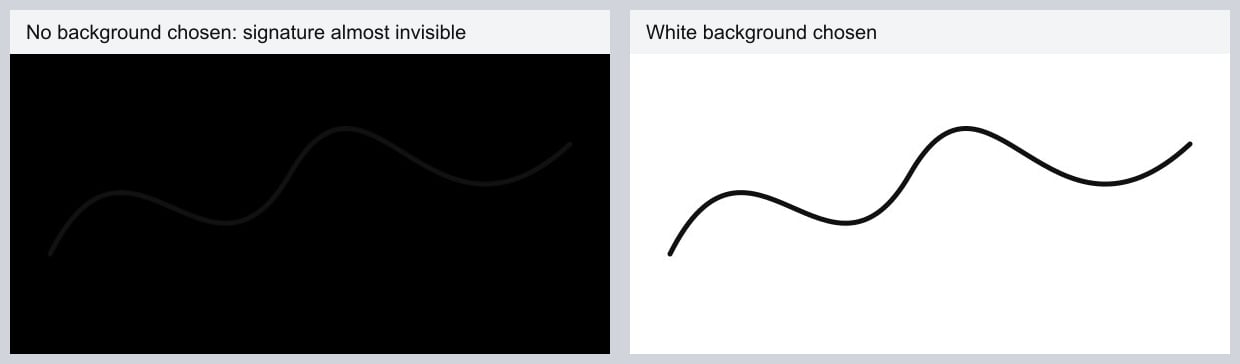
In our test, the signature on the left is almost invisible. This matters in India, where exam and job portals often ask for a signature in JPG. If the preview on the portal looks like a black box, this is the reason. Convert again with a white background, then check the size limits in our guide on photo and signature size for online forms.
Which background colour should you pick?
Pick the colour of the place where the image will be shown. The see-through parts become that colour, and the soft edges of your logo or text blend into it.
| Where the JPG will be used | Background to pick | Why |
|---|---|---|
| Exam, job or bank form (photo, signature) | White | Portals and printed forms expect white |
| Document, letter or printout | White | Matches paper |
| Website or slide with a coloured background | Custom: the exact colour of that background | Edges blend in, no visible box |
| Dark-mode app or a black slide | Black | Matches the dark surface |
| Product photo for a shop listing | White or the shop's light grey | Most marketplaces use a light plain background |
If you are not sure, choose white. It is the safest choice for anything that may be printed or uploaded to a form.
One thing to watch: the edges of a logo are partly transparent. After converting on white, those edge pixels contain a little white. If you later place that JPG on a dark website, you may see a thin light outline. The only real fix is to convert again with the right colour, or keep the image as PNG.
How to set the background in QuickFileTools
- Open the PNG to JPG tool and choose your PNG files (up to 10, each up to 25 MB). You can also paste an image with Ctrl+V.
- Under "Background for transparent areas", pick White, Black, Light grey, or Custom. Custom opens a colour picker, so you can match a website colour exactly.
- Choose a JPG quality. Balanced (85) is the default and fine for most uses.
- Convert, then download one JPG or all of them as a ZIP.
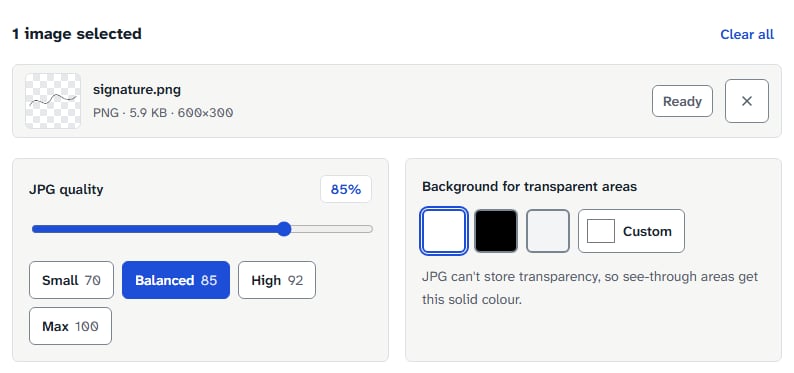
White is selected by default, so the tool never gives you a surprise black background. The conversion runs in your browser, and your images are not uploaded.
How we tested
We made three test PNGs on 23 October 2026: a red and navy logo with soft edges, a thin black signature line, and a blue square whose transparent area stores white instead of black. Each one was converted to JPG at quality 85 in Chromium, Firefox and WebKit (the engine behind Safari), first with no background and then with white, light grey and black. We read the colour of the corner pixel in every result and noted the file size.
| Test file (PNG size) | No background | White | Light grey | Black |
|---|---|---|---|---|
| Logo (8.8 KB) | black, 7.6 KB | white, 9.6 KB | grey, 9.4 KB | black, 7.6 KB |
| Signature (5.9 KB) | black, 3.1 KB | white, 6.5 KB | grey, 6.4 KB | black, 3.1 KB |
| Square with white hidden under it (5.1 KB) | black, 3.0 KB | white, 3.1 KB | grey, 3.1 KB | black, 3.0 KB |
Sizes are from Chromium. Firefox files were 1 to 2 KB larger, and WebKit matched Chromium within a few bytes. What we saw:
- With no background, all three engines gave pure black, the same as choosing black.
- The background colour changes the file size only a little. The black versions look smaller mainly because there is less detail left to store.
- The hidden white in the third file made no difference in the browser. The canvas ignores it. It only shows up in tools that drop the alpha channel.
When not to convert to JPG at all
Sometimes the honest answer is: keep the PNG.
- You need the transparency later. A logo that will sit on many different backgrounds should stay PNG. Once it is JPG, the see-through areas are gone for good.
- The image is a screenshot or has sharp text. JPG can add soft blur around letters. PNG keeps them crisp.
- You want a small file and transparency. WebP keeps transparency and is usually smaller than PNG. You can switch formats with the Image Converter.
Our own tool has limits too. It accepts PNG files only, up to 10 at a time and 25 MB each.
FAQ
Can I get the transparency back after converting to JPG?
No. The JPG only has the solid colour that was filled in. Keep your original PNG if you may need the transparent version again.
Why is there a thin white line around my logo on a dark website?
The logo was converted on a white background, and its soft edge pixels mixed with that white. Convert again with Custom and pick the website's exact background colour.
Does a black or white background change the quality?
No. Quality depends on the JPG quality setting. The background only decides what colour fills the see-through parts.
My converted signature shows as a black box on the form portal. What do I do?
Convert the original PNG again with a white background, then check that the file still meets the portal's KB and pixel limits.
Pick your background, then convert
The black background is a default, not a mistake in your file. Choose white for forms and printing, or match the colour of the page where the image will appear. When you are ready, pick a background and turn your PNG into a JPG. Your files stay on your device.
Related guides: Why is my JPG bigger than my PNG? · Photo and signature size for online forms · Check a tool does not upload files