JPG Quality 70 vs 85 vs 92 vs 100: What Actually Changes
For most photos, 85 is the best JPG quality setting because it keeps file sizes small while preserving clear image detail. Use 70 if you need to save data, 92 for printing, and 100 only when fine coloured text must stay crisp. In your browser, you can choose a JPG quality and convert in seconds.
What does the JPG quality number actually mean?
When you convert an image to JPG in your browser, the tool asks for a quality setting between 40 and 100. Setting quality to 100 does not mean lossless compression, and setting it to 85 does not remove 15 percent of your picture.
The quality number guides how strongly the compression algorithm discards fine image data. However, web standards do not specify what each number on the slider must do.
According to the HTML Living Standard canvas specification, the quality value "is a number in the range 0.0 to 1.0 inclusive indicating the desired quality level for the resulting image". The specification does not define specific compression results for those numbers. Each browser decides how to handle the setting.
In browser converters, saving relies on HTMLCanvasElement.toBlob, which describes how browsers save images. QuickFileTools provides a slider from 40 to 100 with four presets: Small (70), Balanced (85, the default), High (92), and Max (100). Once converted, the tool reports before and after file sizes, showing how much smaller or larger the output became.
How do file sizes and image match change from 70 to 100?
File sizes grow steadily from quality 70 to 92, and then jump steeply at quality 100.
To evaluate image fidelity, we use Peak Signal-to-Noise Ratio (PSNR) measured in decibels (dB). A higher dB score means the converted image pixels are mathematically closer to the original source pixels. PSNR is a standard measurement tool for comparison across encoded files.
We tested four graphics in Chromium across nine quality settings: a 1366x768 screenshot of a real web article page, a 1200x630 flat share graphic, a 600x200 computer-drawn signature line on white, and a 1600x1067 colourful synthetic pattern with photo-like detail.
| Quality | Screenshot | Flat graphic | Signature | Photo-like pattern |
|---|---|---|---|---|
| 40 | 64.4 / 27.6 | 19.4 / 37.5 | 5.5 / 35.6 | 65.1 / 38.4 |
| 60 | 80.5 / 28.3 | 23.0 / 39.5 | 6.5 / 37.8 | 94.8 / 40.4 |
| 70 (Small) | 92.8 / 28.8 | 25.7 / 41.1 | 7.3 / 39.5 | 116.2 / 41.4 |
| 80 | 111.6 / 29.3 | 29.6 / 42.5 | 8.3 / 42.1 | 150.9 / 42.2 |
| 85 (Balanced) | 126.6 / 29.6 | 32.4 / 43.4 | 9.1 / 44.1 | 188.8 / 43.0 |
| 90 | 150.4 / 29.9 | 36.6 / 44.4 | 10.4 / 47.1 | 257.3 / 44.1 |
| 92 (High) | 162.3 / 30.0 | 38.6 / 44.5 | 10.9 / 48.8 | 278.6 / 44.5 |
| 95 | 194.1 / 30.1 | 44.2 / 45.3 | 12.5 / 52.5 | 381.1 / 45.5 |
| 100 (Max) | 496.8 / 51.6 | 87.9 / 53.9 | 17.1 / 68.7 | 1,483.4 / 50.6 |
In the table above, the first number is file size in kilobytes and the second number is match score in decibels.
Between quality 70 and 92, file size climbs in steady steps. The photo-like pattern increases from 116.2 KB at 70 to 188.8 KB at 85, and reaches 278.6 KB at 92. Match scores improve modestly over this range, moving from 41.4 dB to 44.5 dB.
Stepping from 92 to 100 causes a large size spike. The photo-like pattern expands from 278.6 KB to 1,483.4 KB. The screenshot surges from 162.3 KB to 496.8 KB, and the signature increases from 10.9 KB to 17.1 KB.
Why does quality 100 create a massive file jump?
Quality 100 causes a large size increase in Chromium because it switches from quarter colour sampling to full colour sampling.
At quality levels below 100, Chromium uses 4:2:0 chroma subsampling, also known as quarter colour. The encoder saves one colour sample for every 2x2 block of four pixels, while saving full brightness detail for every pixel. Human eyes detect variations in brightness much more sharply than fine colour differences, so this reduction cuts file size without obvious visual damage in photographs.
At quality 100, Chromium switches to 4:4:4 full colour sampling, storing individual colour values for every pixel. This explains why the screenshot match score barely shifted between quality 40 and 95 (moving only from 27.6 dB to 30.1 dB), and then jumped to 51.6 dB at quality 100.
Measuring brightness alone on that same screenshot showed steady improvement across every step: 36.9 dB at 70, 41.4 dB at 85, 45.1 dB at 92, 47.4 dB at 95, and 53.2 dB at 100. The ceiling on the overall score below 100 was colour resolution.
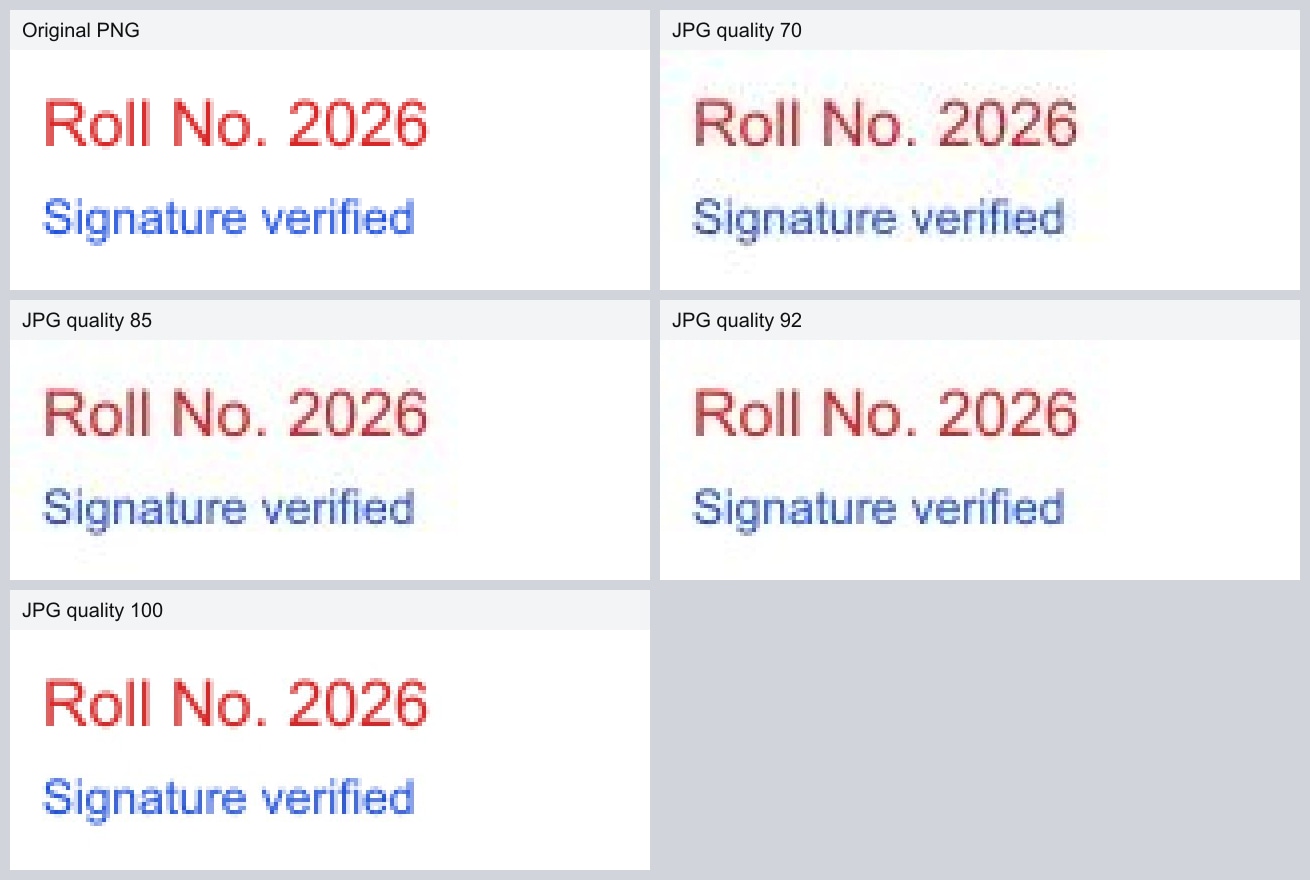
This difference is visible when zooming into coloured text. In our test with 12 to 16 pixel red text reading "Roll No. 2026" and blue text reading "Signature verified", qualities 70, 85, and 92 made the letters look duller with slightly muddy edges. At quality 100, the coloured text matched the original. That crop measured 2.2 KB at quality 70, 2.8 KB at 85, 3.5 KB at 92, and 9.1 KB at 100.
Even with full colour sampling, quality 100 is still lossy. JPG encoding always involves lossy compression.
Does the same quality setting look identical in every browser?
Quality settings do not produce identical files across different browsers because browser engines use different encoding defaults.
We checked the colour resolution stored in JPG files across engines from quality 85 to 100:
- Chromium (Chrome, Edge, Chrome on Android): Uses quarter colour at every quality setting below 100, and full colour only at 100.
- Firefox: Uses quarter colour up to quality 89, and switches to full colour starting at quality 90.
- WebKit (Playwright WebKit build on Windows): Retains quarter colour across all settings up to 100.
Because Firefox switches to full colour at quality 90, converting an image at quality 92 in Firefox creates a much larger file than in Chrome.
Which JPG quality setting should you pick?
The right setting depends on your image content and file size constraints.
Moving from 70 to 85 and 92 increases file size steadily and improves brightness detail. For photos, 85 is a balanced default that keeps files lightweight while keeping photographic textures sharp.
For small coloured text or logos where colour edges matter, the best option is to keep the original PNG format. When an application form or client requires a JPG, quality 100 preserves coloured edges but costs 2.5 to 3 times the file size of 92. If file size is tightly constrained, quality 70 will keep the output small, but you must check text readability afterwards.
| Your image and goal | Recommended choice | Why |
|---|---|---|
| Photo for WhatsApp or web use | Balanced (85) | Keeps files small while keeping photo details clear |
| Photo to print | High (92) or Max (100) | Preserves fine brightness and colour gradations for print |
| Screenshot with text (file size is flexible) | Keep PNG, or Max (100) | Full colour sampling keeps coloured text clean |
| Screenshot with text (file size is limited) | Small (70) | Reduces size; verify text readability after saving |
| Form photo or signature with a fixed KB limit | Compress Image Target size | Portals enforce exact kilobyte limits |
When to use Compress Image instead of quality sliders
If you must meet a fixed kilobyte limit for an online portal, adjusting quality sliders is the wrong approach.
Some recruitment, exam and government portals ask for a photo under 50 KB or a signature under 20 KB. Moving a slider from 85 to 70 does not guarantee that your file will meet a specific kilobyte target.
Instead of guessing slider values, use Compress Image with the "Target size" option. You enter your kilobyte limit. The tool lowers the quality and, if it has to, the pixel size until the image fits, and it tells you plainly if it cannot get that small.
Our PNG to JPG tool accepts PNG files only, up to 10 images at once and up to 25 MB each.
How we tested
On 23 October 2026, we tested four PNG files: a 1366x768 article screenshot, a 1200x630 flat graphic, a 600x200 computer-drawn signature line on white, and a 1600x1067 colourful synthetic pattern with photo-like detail.
Each PNG was placed on a white canvas and saved with canvas.toBlob(..., "image/jpeg", q) in Chromium via Playwright, matching the exact browser method used in our tool. The files were decoded and compared pixel by pixel against the originals using PSNR in decibels. We checked colour subsampling headers directly from the output files.
FAQ
Is JPG quality 100 lossless?
No. Quality 100 switches to full colour sampling in Chromium, but JPG encoding is always lossy. The format still discards data during mathematical quantization.
Why does coloured text look blurry below quality 100?
Below quality 100, Chromium uses 4:2:0 quarter colour subsampling, storing one colour sample for every four pixels. This causes sharp red or blue text edges against white backgrounds to become duller and slightly muddy.
Why does Firefox produce different file sizes than Chrome at quality 90?
Web standards leave compression implementation to each browser. Firefox switches to full colour sampling at quality 90, while Chromium stays in quarter colour until quality 100. Full colour costs bytes: our 1366x768 screenshot at quality 92 was 268.2 KB in Firefox and 162.3 KB in Chromium.
Can a quality slider guarantee an exact file size like 50 KB?
No. Quality sliders adjust compression aggressiveness, not output byte count. To meet an exact portal limit, use Compress Image with Target size instead.
Choose your quality setting and convert
Different quality settings balance file size against image sharpness. 85 is a good default for photos, 70 keeps files compact, and 100 preserves fine coloured details at the cost of a much larger file. When you are ready, you can convert your PNG images to JPG in your browser. The conversion runs in your browser, so your files stay on your device.
Related guides: Why Is My JPG Bigger Than My PNG? · Why Your PNG Turns Black When Converted to JPG · Photo and Signature Size for Online Forms