Can You Convert JPG Back to PNG? (Why Transparency Won't Return)
Yes, you can convert any JPG file back to PNG, but your transparency will not return. When a transparent PNG is saved as a JPG, all see-through areas are permanently filled with a solid background colour. The new PNG can only hold what is in the JPG, so the transparent pixels remain solid.
What happens when a transparent PNG becomes a JPG?
A transparent PNG usually stores four channels for each pixel: red, green, blue, and alpha. The alpha channel defines how see-through each pixel is. According to the MDN image file type guide, PNG has "full alpha transparency support", whereas "JPEG does not support an alpha channel".
Because JPG cannot store an alpha channel, any transparent area must be filled with a solid colour during conversion. When you convert a file using a PNG to JPG converter, the converter places a solid background behind the image. On our tool, that setting is named "Background for transparent areas", and it uses white by default.
When that conversion happens, the original see-through pixels are replaced with solid colour values. The alpha information is discarded completely. Once the file is saved as a JPG, the image data no longer knows which pixels were once transparent and which were part of your original artwork.
What happens when you convert a JPG back to PNG?
You can open any JPG in our Image Converter, select "Convert to" as PNG, and save a new file. The conversion succeeds without errors, and the tool outputs a valid PNG file.
However, the tool can only encode the pixels present in the JPG source. As explained in the W3C PNG specification, PNG provides "lossless" compression where "Losslessness: filtering and compression should preserve all information." In other words, PNG preserves the input pixels exactly as they are. It does not alter them, guess missing details, or undo earlier processing.
MDN points out that JPEG is "the most widely used lossy compression format for still images", while PNG "uses lossless compression". When an image is saved as a JPG, lossy compression creates subtle compression artefacts around edges and flat surfaces. Converting that JPG back to PNG keeps those exact pixels, including every artefact and the solid background colour. The new PNG does not become sharper and cannot restore deleted transparency.
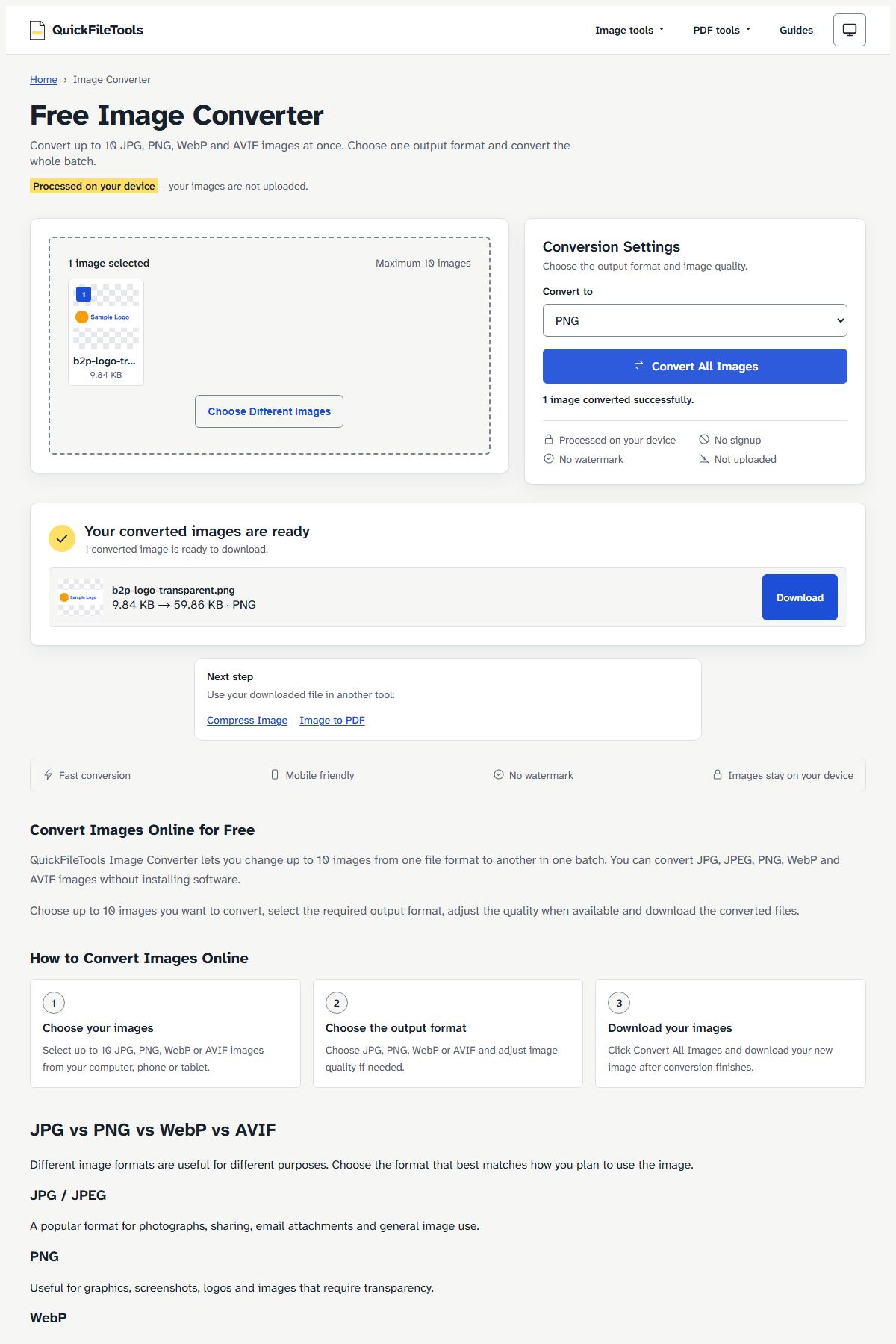
During conversion, the Image Converter preserves the original file name and updates the extension. In our testing, b2p-logo-transparent.jpg was saved as b2p-logo-transparent.png.
How we tested converting JPG back to PNG
We tested this conversion sequence on 27 October 2026 on the live site quickfiletools.in using Chromium via Playwright.
We took three test images: a transparent logo (600×200), a transparent app icon (512×512), and an opaque screenshot (1366×768). First, we converted each PNG into a JPG using default settings (quality 85 and a white background for transparent areas). Next, we loaded those JPG files into Image Converter and converted them back to PNG. We decoded each PNG file before and after the test to count transparent pixels directly.
| Image | Original PNG | Transparent pixels | JPG | Back to PNG | Transparent pixels after |
|---|---|---|---|---|---|
| Logo, 600×200 | 11.3 KB | 104,158 of 120,000 | 9.8 KB | 59.9 KB | 0 |
| App icon, 512×512 | 80.6 KB | 110,465 of 262,144 | 12.3 KB | 117.6 KB | 0 |
| Screenshot, 1366×768 | 78.9 KB | none (no alpha) | 79.3 KB | 415.1 KB | 0 |
Our measurements showed three consistent results:
- The transparent pixel count was zero for every converted file. Even though the original logo had 104,158 transparent pixels and the icon had 110,465 transparent pixels, not a single transparent pixel returned.
- The width and height of each image remained unchanged throughout the process.
- The resulting PNG files were several times bigger than the JPG files they came from. The logo grew from 9.8 KB to 59.9 KB (6.1 times bigger), the app icon grew from 12.3 KB to 117.6 KB (9.6 times bigger), and the screenshot grew from 79.3 KB to 415.1 KB (5.2 times bigger).
Why does the file support transparency if the image is opaque?
When you inspect the converted PNG files with an image decoder, you find that they use the RGBA colour format (colour type 6). That means the file format technically includes an alpha channel.
This creates a common point of confusion: the file supports transparency, but the picture contains no transparent areas.
Because the converter outputs an RGBA image, an alpha value exists for every pixel. However, the value for every single pixel is set to 255 (completely opaque). The solid white background that was baked into the JPG remains 100 percent opaque white. Supporting an alpha channel is a property of the container; displaying transparent areas requires pixels where the alpha value is less than 255.
How to get a transparent image again
Because conversion tools cannot reconstruct missing transparency, you have three practical options to recover a transparent graphic:
- Use your original PNG file. If you kept your original asset, use that file instead. When converting files, always keep your original master files intact and convert copies rather than overwriting existing assets.
- Re-export from the original design project. If the graphic was created in a design program, presentation software, or screenshot utility, open the source project and export a fresh PNG with transparency enabled.
- Use a background-removal editor. If you only have the JPG and no source project, you need an image editor that can isolate the subject and cut away the solid background. QuickFileTools does not offer a background-removal tool and does not recommend a specific software product.
When does converting a JPG to PNG still make sense?
Although converting a JPG to PNG will not restore transparency, turning a JPG into a PNG is still useful in two situations:
- An application or form accepts only PNG. If an upload form or app lists PNG as the only allowed format, converting the JPG gives you a file in that format.
- You plan to edit and re-save the image multiple times. Because PNG uses lossless compression, saving a PNG again adds no new compression loss, while every new JPG save compresses the picture again.
Keep the trade-off in mind: the converted PNG will be several times larger than the JPG, as our measurements show, without any improvement in sharpness or clarity.
FAQ
Will converting JPG to PNG improve image quality?
No. Converting a JPG to PNG does not improve image quality, sharpen lines, or remove compression artefacts. PNG preserves the incoming pixels exactly as they are in the JPG.
Why is the converted PNG so much bigger than the JPG?
PNG is lossless, so it keeps every pixel of the JPG exactly, including the small variations that JPG compression leaves behind. JPG saves space by discarding detail; PNG does not. In our test, the PNGs came out 5 to 10 times bigger than the JPGs they were made from.
Can I make the white background transparent again on QuickFileTools?
No. QuickFileTools does not offer a background-removal tool. Our tools convert and compress image formats on your device, but they do not cut out subjects or strip solid backgrounds. To remove a solid background, you must use a dedicated background-removal editor.
Does renaming a .jpg file to .png restore transparency?
No. Changing a file extension from .jpg to .png in your file explorer only alters the label on the outside of the file. The data inside remains a JPEG image without transparency. For more details on extensions, read our guide on JPG vs JPEG difference.
Keep your original PNG files safe
Converting a JPG back to PNG cannot recover transparent pixels that were replaced by solid background colour, so always keep your original master files in a safe place. When you need a smaller file for an upload or email, keep the PNG and make a copy as JPG. Your files stay on your device.
Related guides: Why your PNG turns black when converted to JPG · Why is my JPG bigger than my PNG? · JPG quality settings explained