How to Password-Protect a PDF Without Uploading It
To password-protect a PDF without uploading it, open the Protect PDF tool in your browser, select your document, type your password twice, and download the protected copy ending in -protected.pdf. The tool applies 256-bit AES encryption locally on your device. Nothing is uploaded to a server. Keep the password safe, because nobody can recover a lost password.
Step-by-step: How to password-protect your PDF
You can add a password in your browser without installing software or sending documents over the internet:
- Click Choose PDF or drag your document into the drop zone. The tool accepts unencrypted PDF files up to 100 MB.
- In the Password field, type your password. Type the exact same password in Confirm password. Click Show if you want to view the characters and verify your spelling.
- Review the on-screen warning and click Protect PDF. The browser encrypts the file directly on your machine.
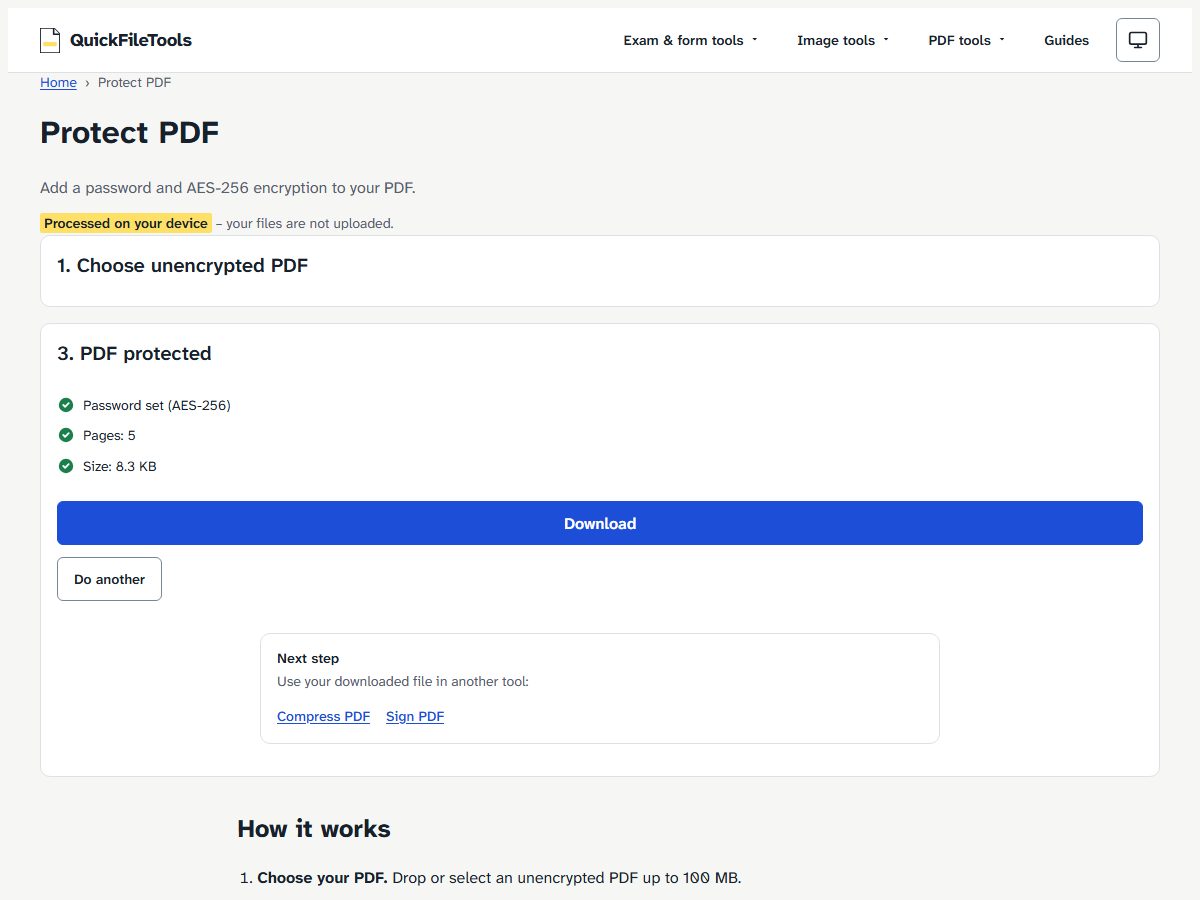
- When processing completes, review the checklist showing password confirmation, page count, and file size. Click Download to save the new file, named
<name>-protected.pdf. Your original file is not changed. Click Do another if you want to protect another document.
What encryption does Protect PDF use?
Protect PDF encrypts your document with 256-bit AES (Advanced Encryption Standard). It runs qpdf, an open source library under the Apache-2.0 license, compiled to WebAssembly inside your browser tab.
According to the qpdf PDF Encryption manual, "The intent of PDF encryption was that there would be two passwords: a user password and an owner password."
The qpdf manual explains the algorithms used across different encryption levels: "40-bit encryption always uses RC4." It adds: "128-bit can use either RC4 (the default for compatibility reasons) or, starting with PDF 1.6, AES." And: "256-bit encryption always uses AES."
Older 40-bit encryption is not secure. As stated in the qpdf documentation, "files encrypted with 40-bit encryption are not secure regardless of how strong the password is."
In the qpdf Weak Cryptography documentation, the project states: "You can avoid using weak encryption in qpdf by always using 256-bit encryption." Protect PDF always uses 256-bit AES. When we checked its output files with qpdf, the streams, strings and embedded files were all encrypted with 256-bit AES.
Password rules and validation messages
Passwords must be between 6 and 127 characters and use standard keyboard characters so they can be typed in any PDF reader.
The rules:
- Length: 6 to 127 characters.
- Allowed characters: English letters, numbers, and symbols found on a standard keyboard (printable ASCII).
If an entry does not meet these rules, the page shows one of these messages when you click Protect PDF:
- Password under 6 characters (such as
Shortwith 5 characters):Use at least 6 characters. - Passwords differ:
The passwords do not match. - Characters outside printable ASCII:
Use only English letters, numbers and symbols on a standard keyboard. - Choosing a PDF that already has a password:
This PDF already has a password. Unlock it first, then protect it again.To remove or change the password on an encrypted file, you must use Unlock PDF first.
Above the action button, the tool displays a warning: Keep the password safe. If you forget it, nobody can open the file – we never see or store it.
The tool checks its own result before you can download: without the password the file must refuse to open, and with the password it must open with the original page count.
Does the file get bigger?
In our tests, password protection added under 1 KB of data to the file.
We tested Protect PDF using two sample documents with the password Statement-2026:
| Test file | Before | After Protect PDF | Time to Download button |
|---|---|---|---|
| 5-page text PDF | 7.4 KB | 8.3 KB (8,453 bytes) | 2.8 s Chromium, 2.8 s Firefox |
| 2-page PDF with pictures | 1.4 MB (1,430,654 bytes) | 1.4 MB (1,431,481 bytes, +827 bytes) | 1.6 s Chromium, 2.3 s Firefox |
In our tests, the 5-page text PDF grew from 7,587 bytes to 8,453 bytes (+866 bytes), and the 2-page picture PDF grew from 1,430,654 bytes to 1,431,481 bytes (+827 bytes). The size grew only a little (under 1 KB for both files). Processing finished in 1.6 to 2.8 seconds across Chromium and Firefox.
What Protect PDF does not do
Protect PDF sets an open password for the document, with specific tool limits:
- No permissions: One password protects opening the file. It does not set separate print, copy, or edit permissions.
- No recovery: If you forget the password, nobody can open the file. We never see or store your file or password.
- No already-protected files: The tool accepts unencrypted files only. If a PDF already has a password, unlock it first.
- File size limit: The tool processes single files up to 100 MB.
- Original file unchanged: The output file is named
<name>-protected.pdf. The original file is not changed.
Sharing the file and the password safely
You should always send the password a different way than the file:
- Separate channels: Send the PDF by email, but share the password through a different channel, such as a phone call or SMS text message.
- Password length: Longer passwords are harder to guess.
How we tested
We tested Protect PDF on the live site on 30 October 2026 using Playwright in Chromium and Firefox.
Test files we made, with no real data:
- A 5-page text PDF from pdf-lib (7,587 bytes).
- A 2-page PDF with generated pictures (
report-photos.pdftest fixture, 1,430,654 bytes).
We encrypted both files on quickfiletools.in with the password Statement-2026. Encryption checked with qpdf afterwards on all four output files confirmed 256-bit AES for streams, strings, and embedded files.
The right password opened every file with all pages; a wrong password was refused. A second PDF library (pdf-lib) could not open the protected files without the password.
Frequently asked questions
Can you recover my file if I forget the password?
No. Encryption runs locally in your browser, and your password is never uploaded to a server. If you forget the password, nobody can open or recover the document.
Is my PDF uploaded?
No. All processing happens in browser memory. Follow our guide to check a tool does not upload files by disconnecting your network after the page loads and confirming the file still encrypts offline.
Can I set print or copy permissions?
No. Protect PDF sets a single open password. It does not configure separate print or copy permissions.
How do I remove the password later?
You can remove the password using Unlock PDF (see how to remove a password from a PDF). Choose the protected file, enter the password you set, and download an unencrypted version of the document.
Will people need special software to open it?
Recipients only need a PDF reader that supports 256-bit AES and the password. We opened our test files with pdf.js and qpdf.
Protect your documents on your device
When you need to secure confidential records, you can protect your PDF with a password directly in your browser. The encryption happens on your computer or phone, and the file and password are not uploaded. After protecting your document, you can also use Sign PDF if you need to add an electronic signature before sharing your file.