Photo Size Not Valid? 7 Reasons an Exam Portal Refuses an Upload
The file usually breaks one written rule: too many KB, too few KB, the wrong pixels, the wrong format, or an image that is unclear. Open your exam's notice, compare each number with your file, fix the one that differs, then check the preview on the portal before you submit.
What this guide can and cannot tell you
Each portal words its messages differently, and we did not test any portal. So "photo size not valid" is only a general description here, not a quote from any exam website. The IBPS PO/MT-XV upload guidelines (2025) say only: If the file size and format are not as prescribed, an error message will be displayed.
The seven reasons below are likely causes to check, and our examples come from those IBPS guidelines. Fixing one does not guarantee a portal will accept your file, and your own notice may set different numbers.
Before you change anything
Open the notice for your exam and write down its numbers for the document. For a worked example, see the IBPS photo, signature, thumb and declaration sizes. Then look at four things in your file: its size in KB, its width and height in pixels, its file type, and how clear it looks.
7 reasons an upload is refused
1. The file is over the KB limit
The IBPS photo must not be more than 50 KB. Check the size in your file's details. If it is over, lower the KB.
2. The file is under the minimum KB
Some exams set a minimum as well. The IBPS photo must be between 20 and 50 KB, so a 15 KB file is outside the range. You can increase the image size in KB. Our Exam Photo Resizer does this by adding empty data, which does not add any detail to the picture.
3. The pixels differ from the notice
IBPS gives 200 × 230 pixels as the preferred photo size, while our UPSC preset uses a range of 350–1000 pixels per side. Check the width and height in your file's details. To see why this is a separate check from file size, read photo pixels vs KB.
4. The file is in the wrong format
IBPS image files must be JPG or JPEG. Renaming a file to end in .jpg does not change its real format. Use an image converter to make a true JPG.
5. The document is in the wrong slot
IBPS asks you to upload each document at its specified space, and warns that a photo or signature in the wrong place can mean you are not allowed to appear for the exam. Read the label on the upload box before you choose the file. This is not a size problem, so no resizer fixes it.
6. The picture is unclear
IBPS says an unclear or smudged face, signature, thumb impression or declaration may lead to rejection. Its list of things to avoid includes a blurred image, a shadow on the face, a mask, and a dark or improper background. Retake the photo or scan the page again. Resizing cannot fix blur.
7. The signature or declaration is in capital letters
IBPS says: Signature / Hand written declaration in CAPITAL LETTERS shall NOT be accepted. Write it again without capitals. A tool cannot fix handwriting.
Fix the size with the tool
Reasons 1 to 4 are about the file itself. If the size is the problem, you can fix the size in one step.
- Under
Exam, choose your exam. If it is not listed, chooseCustom sizeand type the numbers from your notice. - Under
Document, pick what you are preparing, if the exam lists documents. - Click
Choose image. The page takes JPG, PNG and WebP files up to 50 MB, and your file is not uploaded. - Compare the result lines
Size:,Dimensions:andFormat:with your notice. - Click
Downloadto save the JPG.
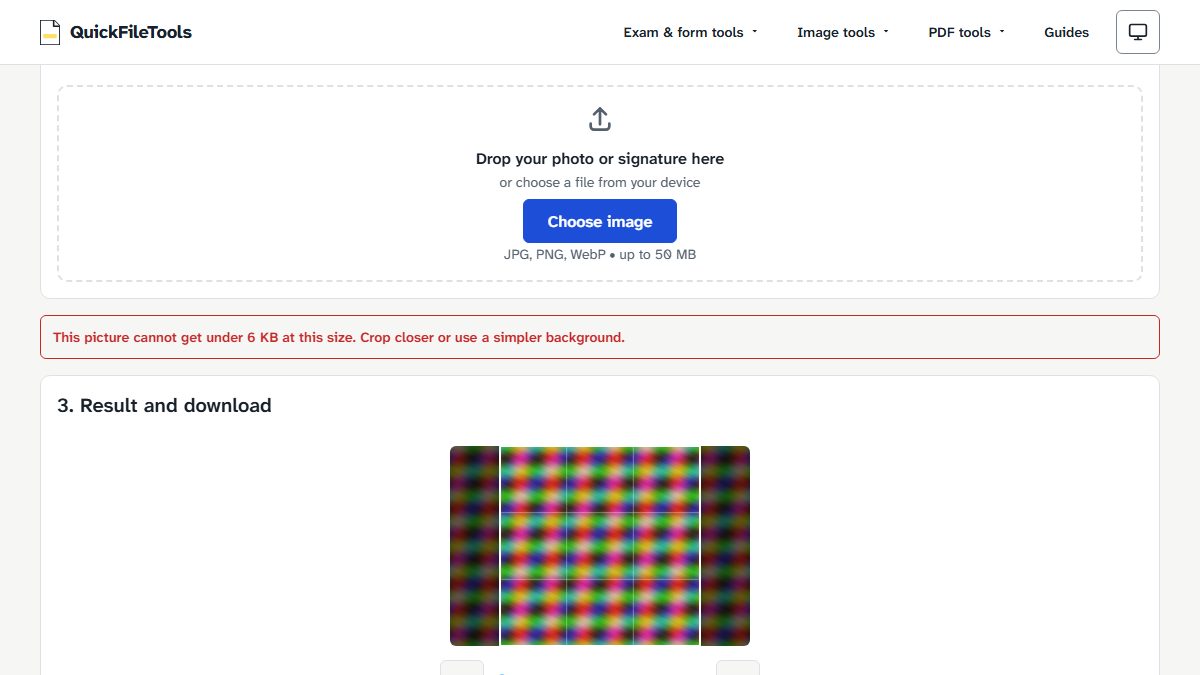
Sometimes the numbers cannot all be met. If our tool shows this message, crop closer or use a simpler background, as it suggests:
This picture cannot get under 6 KB at this size. Crop closer or use a simpler background.
What we tested
On 2 November 2026 we tested our tool in Chromium with a generated test image of 3000 × 2000 pixels, with no real person in it. We tested our tool, not any exam portal.
- 1000 × 1000 pixels at 5–6 KB: the tool showed the message above.
- 200 × 230 pixels at 20–50 KB: the result was a 20 KB, 200 × 230 pixel JPG with the note
Small file made bigger with empty data. The picture itself is unchanged. - A maximum of 3 KB in
Custom size: the tool showedEnter a maximum size between 5 and 5000 KB.
Frequently asked questions
Does increasing the KB make the photo clearer?
No. When the tool raises a file to a minimum size, it adds empty data, and its note says the picture itself is unchanged.
Can I fix the format by renaming the file?
No. Renaming changes only the name. To get a real JPG, you need to convert the file.
Can a resizer fix a blurry photo?
No. Resizing cannot fix blur, so you need to retake the photo or scan it again.
Will the portal accept my file after I fix it?
We cannot promise that, because we did not test any portal and each exam sets its own rules. Matching every number in your notice, and checking the preview before you submit, is what you can control.
Prepare your file
Keep your notice open and set your file to the numbers it gives. Then read each result line before you try the upload again. Your file stays on your device.