Are Online Image Converters Safe? What Happens to Your Files
Online image converters are safe only if you know where your files travel. Traditional server-based converters upload your photos to remote hardware, leaving copies outside your control. In contrast, an in-browser PNG to JPG converter that doesn't upload processes data directly on your device using local memory. You can verify how any converter behaves in under one minute.
What is the difference between server-side and in-browser converters?
Online image converters fall into two distinct technical categories: server-side tools that transmit your files across the internet, and in-browser tools that run entirely on your own device.
From the outside, both look the same: a web page with a button to choose a file and a download button. What happens after you choose an image is different:
- Server-side converters: Your browser packages your image data and sends it over the internet to the provider's server. The server runs conversion software, creates the new file on remote storage, and sends the finished image back to your browser.
- In-browser converters: The website code downloads into your browser when the page opens. According to the MDN File API documentation, "The File API enables web applications to access files and their contents." This standard allows the browser to read the image file directly from your local storage. The conversion happens inside your device processor and system memory, without sending image data to an external server.
| Feature | Server-side converter | In-browser converter |
|---|---|---|
| Where the file goes | Uploaded to a remote company server | Stays in your device memory |
| Conversion processing | Executed on cloud hardware | Executed by your local browser engine |
| Network upload required | Yes (entire file size travels over internet) | No (file never leaves your machine) |
| Server file retention risk | Depends on provider terms and retention policies | Zero server copies created |
| Works offline after page load | No | Yes |
What happens to files sent to server-side converters?
When you send an image to a server-side converter, a copy of that file is stored on remote hardware that you do not control.
The questions that matter are about that copy. How long is it kept? Who can access it? Is it backed up or reused?
The only way to answer these questions for any server-side tool is to read that company's privacy policy and terms of service. Do not assume your files vanish immediately unless the terms explicitly state a retention schedule. Even when a website promises to delete files promptly, you have no way to verify their backend deletion procedures from the outside.
Why do HTTPS and deletion promises not guarantee privacy?
A secure padlock icon in your browser address bar only protects your file while it travels to the server, not what happens once it arrives.
Three common signals mean less than they appear to:
- The padlock icon (HTTPS): HTTPS encrypts the connection between your computer and the website server. It prevents someone on your local Wi-Fi network or internet service provider from intercepting the upload. However, once the server receives the file, the server decrypts it. HTTPS does not restrict what the server does with your file afterward.
- Marketing words on the page: Any website owner can type "100% secure" or "completely private" on a landing page. Marketing text does not change how server software handles files.
- Statements like "files deleted after 1 hour": You cannot inspect a remote company's servers to verify whether files are wiped after 60 minutes, retained in backups, or logged. Once an upload leaves your device, you rely entirely on trust.
How can you check whether an image converter uploads your files?
You can independently verify whether any converter uploads your files by using the offline disconnect test or by checking the browser Network tab.
Two simple tests show how a website handles your file:
- The offline disconnect test: Open the converter page, let it load completely, and disconnect your internet connection by turning off Wi-Fi or enabling Airplane mode. Then select your image and run the conversion. A server-based tool cannot finish because it cannot reach remote hardware. If the tool finishes the conversion and provides a download while offline, the processing took place entirely on your device.
- The browser Network tab: Press F12 (or right-click and choose "Inspect") and open the Network tab before selecting your file. When a server-based tool uploads an image, the panel shows an outbound HTTP POST or PUT request with a transfer size roughly matching your original file size. If no large requests appear, your file stayed on your computer.
For step-by-step instructions and DevTools shortcuts, read our guide on how to check a tool does not upload files.
How we tested network activity during conversion
We tested network activity on our live PNG to JPG converter on 29 October 2026 to record exactly what data travels across the connection during image conversion.
We used Chromium and Firefox controlled via Playwright on the live site quickfiletools.in. We opened the PNG to JPG tool page and recorded every network request from the moment a file was selected until 4 to 5 seconds after the conversion finished. Chromium was started without the automation flag so Google Analytics loaded just as it does for a normal visitor.
| Test | Browser | File | Result | Requests while converting |
|---|---|---|---|---|
| Large test image | Chromium | 4.78 MB PNG (1600×1067 synthetic pattern) | 693 KB JPG (86% smaller) | 1 analytics ping: 761-character URL, empty body, event tool_result, no file name |
| Screenshot | Chromium | 79 KB PNG (1366×768 screenshot of our home page) | 79 KB JPG (1% larger) | 2 analytics pings, empty bodies, no file name |
| Screenshot | Firefox (analytics not loaded in automated runs) | 67 KB PNG | 83 KB JPG | 0 |
| Offline: page loaded, then network switched off | Chromium + Firefox | same files | finished both times | - (no network) |
During the test with the 4.78 MB file, the largest item sent across the network was a single 761-character analytics ping measuring under 1 KB of plain text. If the tool had uploaded the file to a server, the Network tab would have shown an outbound request of roughly 4.78 MB.
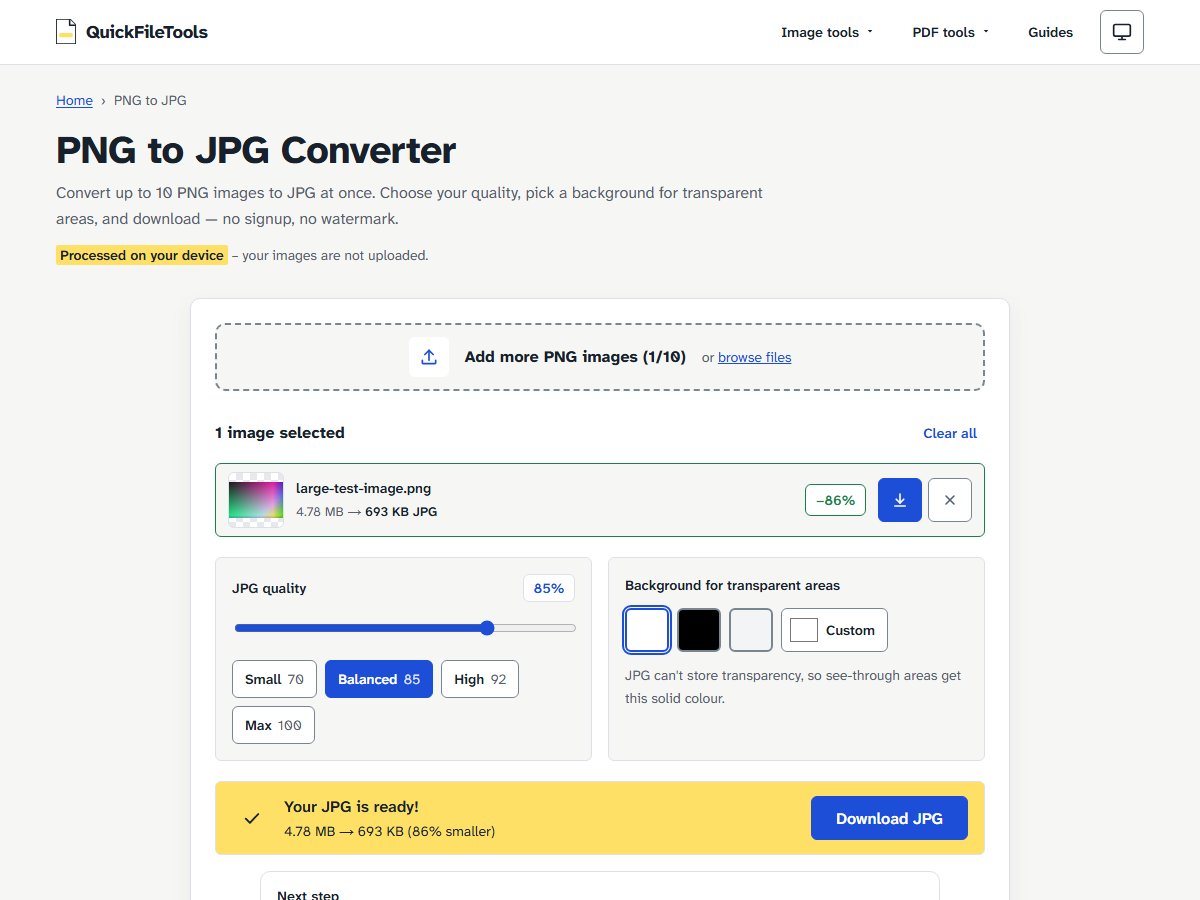
When inspecting the Network tab during local conversions, you may see image preview requests starting with blob:. These blob addresses reference local device memory inside your browser. They are not network uploads and do not transmit data over the internet. The 4.78 MB file was a synthetic test pattern, not a personal photo.
What data does QuickFileTools collect?
QuickFileTools never receives or stores your image files, but the site does record visit statistics through Google Analytics.
Here is exactly what the site does and does not record:
- Local file processing: QuickFileTools converts and compresses images directly on your machine. Your files are never sent to our servers or to third parties.
- Analytics events: We use Google Analytics to count overall site visits. When you choose files, it records the page path and how many files you chose; when a tool finishes, it records the page path only. It never receives file names, file sizes, or image contents. As our privacy policy explains, analytics cookies are not used for visitors from the European Economic Area, the United Kingdom, and Switzerland unless they consent.
- Content Security Policy: Our website uses a strict Content-Security-Policy header to restrict network activity. According to the MDN connect-src reference, the CSP
connect-srcdirective "restricts the URLs which can be loaded using script interfaces." On QuickFileTools, this policy allows scripts to connect only to our own domain and Google Analytics, so the browser blocks a script that tries to send data anywhere else.
When should you avoid using an online image converter?
You should avoid server-side online converters whenever you handle sensitive personal documents or confidential identification records.
To protect your privacy when converting images, adopt these lower-risk habits:
- Keep sensitive records on your device: For personal identity cards, passports, signatures, tax forms, and family photos, do not use converters that upload files to cloud servers. Use in-browser tools where processing stays local, or use a desktop application.
- Crop before converting: If an image contains sensitive text that is not needed for your submission, crop or edit the picture locally before conversion.
- Keep your original files: Never overwrite your original master image. Save converted files as separate copies so you always have the original if you need it.
FAQ
Is HTTPS enough to protect my images when converting online?
No. HTTPS encrypts the transmission channel to prevent third parties on your network from intercepting your data. It does not control what the destination server does with your file once the upload finishes.
Do in-browser image converters work when offline?
Yes. Once the web page finishes loading in your browser, in-browser converters do not require an active internet connection. In our tests, our tool completed conversions successfully in both Chromium and Firefox while the network was completely disconnected.
Does QuickFileTools see my images or file names?
No. All image processing executes locally on your device using the browser File API. Our analytics records only the page path and the number of files chosen, never the file name, file size, or image data.
Are mobile converter apps safer than website converters?
Not necessarily. Just like web converters, mobile apps can process files locally on your phone or upload them to cloud servers for remote processing. Safety depends entirely on where the application sends the file, which requires reviewing the app privacy disclosures. We did not test mobile app stores for this guide.
Keep your images on your device
When you need to change image formats without risking your privacy, choose a tool that operates entirely within your browser. You can convert your PNG images directly in your browser without transmitting documents to remote servers. Your files stay on your device throughout the entire conversion process.
Related guides: Can you convert JPG back to PNG? · How to batch convert multiple PNGs to JPG