Converting PNG to JPG for Printing: DPI, Colour and Quality Settings
For sharp printing, your image must have enough pixels for the target print size, such as 1200 × 1800 pixels for a 4 × 6 inch print at 300 DPI. Convert your PNG at quality 92 or 100. The JPGs our tools make do not store a DPI number, so tell your print shop the print size.
How do pixels, inches and DPI work together?
To produce a clear print, your image needs enough pixels to fill the physical dimensions of the paper.
The relationship between physical print size and digital resolution follows a simple formula:
Pixels = inches × DPI
In this calculation, DPI stands for dots per inch (1 inch = 2.54 cm). DPI alone does not add detail to an image: a 600 × 900 pixel picture stays 600 × 900 pixels whatever DPI number the file carries. What matters for a sharp print is having enough total pixels for the chosen print size.
Print shops recommend specific resolution targets. For example, Jukebox Print recommends 300 PPI in their help guide on what resolution an image should be, stating that a 4 × 6 inch print needs at least 1200 × 1800 pixels. This is one print company's advice rather than a universal rule, so check the specific guidelines of your own print shop.
The table below outlines common print dimensions and the pixel counts required to reach 300 DPI:
| Print format | Size in inches | Pixels needed at 300 DPI |
|---|---|---|
| 4 × 6 photo print | 4 × 6 in | 1200 × 1800 px |
| 5 × 7 photo print | 5 × 7 in | 1500 × 2100 px |
| A4 document sheet | 8.27 × 11.69 in (210 × 297 mm) | about 2480 × 3508 px |
If your PNG has fewer pixels than these targets, printing at large sizes can look blurry. If it already has enough pixels, you can convert it to JPG without losing resolution.
Step by step: how to convert PNG to JPG for printing
Follow these steps to prepare your PNG for print:
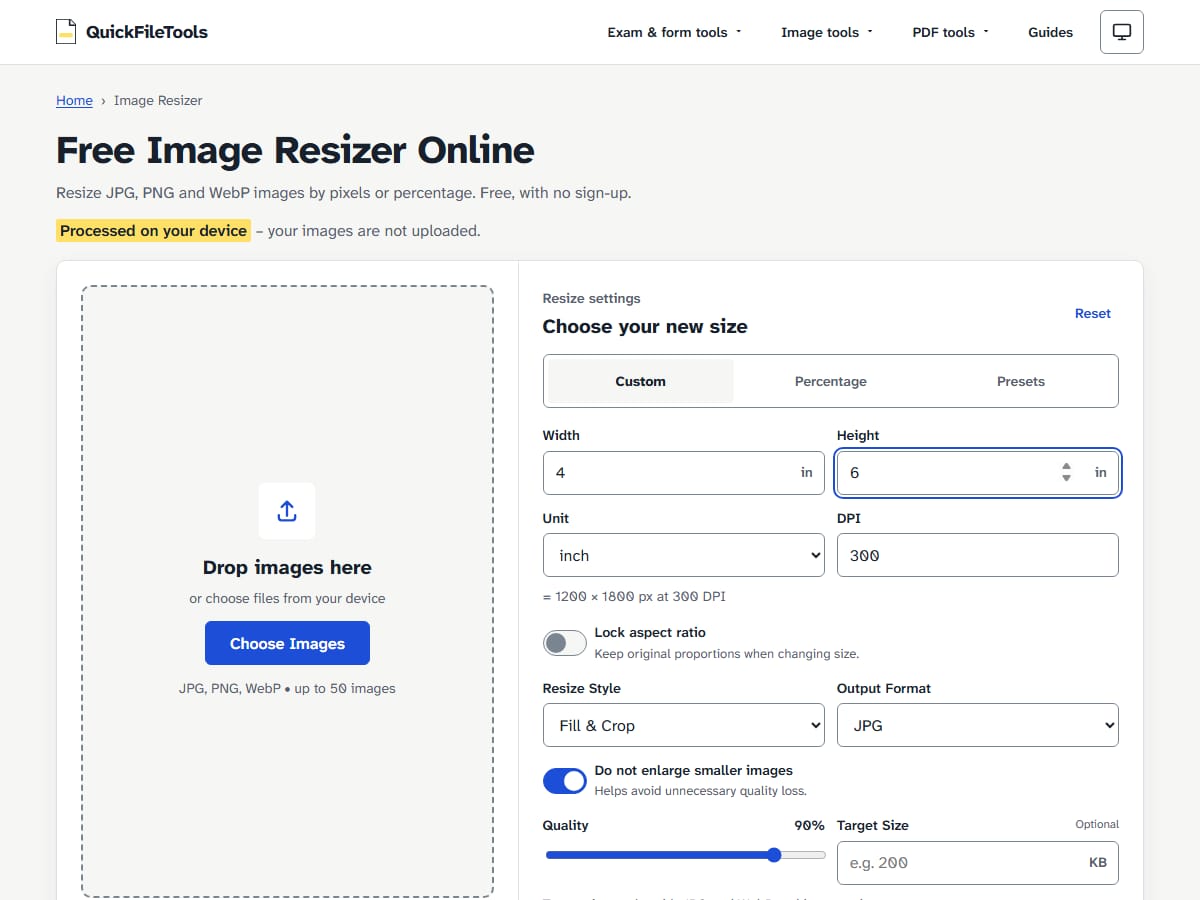
- Work out the pixels you need. Use Image Resizer to turn a print size into pixels. Enlarging a small image does not add detail, so start from the largest copy you have. Select
Custom, setUnittoinch, enter300forDPI, and enter your print size (such as4for width and6for height). The page displays= 1200 × 1800 px at 300 DPI. The DPI box on Image Resizer is a calculator for the pixel size; it does not label the output file. - Turn off aspect lock if proportions differ. When your print shape differs from your photo, turn
Lock aspect ratiooff and chooseFill & CropunderResize Style. In our tests with a 3024 × 4032 camera photo (a 3:4 shape), typing 4 then 6 with aspect lock on gave 1350 × 1800 pixels. Turning the lock off and choosing Fill & Crop gave exactly 1200 × 1800 pixels. - Convert at quality 92 or 100. In PNG to JPG, add your PNG file and choose preset
High 92orMax 100to keep more fine detail. You can convert at maximum quality in your browser. As shown in our guide on JPG quality settings, quality 85 is balanced for online viewing, while 92 or 100 is recommended for printing photos. - Specify the print size or make a PDF page. The JPGs our tools make do not store a print size. When sending files to a print shop, state the dimensions you want (such as "4 × 6 inches"). Alternatively, use Image to PDF to place your picture on an A4, Letter or Legal page before printing.
Does the converted JPG keep your 300 DPI setting?
No. In our tests, the JPG made by our PNG to JPG tool did not keep the DPI setting from the source PNG.
Under the JFIF 1.02 specification, the JPG header contains a units field:
- "units = 0: no units, X and Y specify the pixel aspect ratio"
- "units = 1: X and Y are dots per inch"
- "units = 2: X and Y are dots per cm"
In our tests, every output JPG written by our tools had JFIF units = 0 with density 1:1 in both Chromium and Firefox. The 300 DPI written in the test PNG was not kept.
We did not test what any program, printer or print shop does with a file that has no DPI. The file holds the pixels, not a print size. Tell the print shop the print size (for example "4 × 6 inches"), or put the picture on a page with Image to PDF.
What colour settings are used and do you need CMYK?
All output files from our tools use RGB (sRGB).
In our tests, files saved in Chromium carried an embedded colour profile (an ICC_PROFILE segment), while files saved in Firefox had none. Both browsers output RGB.
None of our tools make CMYK files. If your print shop asks for CMYK, you need a different program for that step.
What happens to transparent PNG backgrounds when converted?
PNG supports transparency, but JPG cannot store transparent areas.
When saving a PNG as JPG, see-through pixels receive a solid colour fill. In PNG to JPG, you can select Background for transparent areas with options for White (default), Black, Light grey, or Custom.
Some other converters fill see-through areas with black. See our guide on why transparent PNG backgrounds turn black in JPG. For printing on white paper, the default white background matches the surrounding sheet.
Common mistakes when preparing PNG files for printing
- Relying on DPI alone to add detail: A 600 × 900 pixel picture stays 600 × 900 pixels whatever DPI number the file carries. Sharp prints require sufficient pixel dimensions.
- Leaving aspect ratio locked when resizing: With aspect lock on, entering 4 then 6 on a 3:4 photo produced 1350 × 1800 pixels. Turn aspect lock off and select Fill & Crop to get exact dimensions.
- Assuming the JPG stores 300 DPI: the JPGs from our tools had
units = 0(no DPI). Tell the print shop the physical print size in inches or centimetres. - Expecting CMYK output: Our tools output RGB only. If a print shop requires CMYK, you need a different program.
How we tested PNG to JPG conversion for printing
We tested PNG to JPG conversion on 30 October 2026 using Playwright on the live site across desktop Chromium and Firefox.
The test file was a PNG we made from a public-domain (CC0, Wikimedia Commons) camera photo, cropped to 1200 × 1800 pixels with 300 DPI written in the PNG (pHYs chunk), totaling 4,889 KB. We converted it in /png-to-jpg and resized the original 3024 × 4032 photo in /image-resizer, then inspected the output JPG headers directly.
| Tool and setting | Chromium output | Firefox output |
|---|---|---|
/png-to-jpg quality 85 (default) |
1200 × 1800 px, 466 KB | 1200 × 1800 px, 469 KB |
/png-to-jpg quality 100 |
1200 × 1800 px, 2,037 KB | 1200 × 1800 px, 2,147 KB |
/image-resizer (Custom, 4 × 6 in, 300 DPI, lock off, Fill & Crop, JPG 90%) |
1200 × 1800 px, 541 KB | 1200 × 1800 px, 664 KB |
Key findings from our measurements:
- The pixel size was kept exactly (1200 × 1800 pixels).
- The 300 DPI was not kept. Every output JPG had JFIF
units = 0with density 1:1 (no DPI at all) in both browsers. - In
/png-to-jpg, quality 100 was about 4.4 to 4.6 times the size of quality 85 (466 KB to 2,037 KB in Chromium). For printing, file size rarely matters unless an upload limit applies. - In
/image-resizer, the page displayed= 1200 × 1800 px at 300 DPIand produced exactly 1200 × 1800 pixels.
FAQ
Is 72 DPI bad for printing?
The DPI number alone does not determine print clarity. What matters is having enough pixels for your print size. A 1200 × 1800 pixel image labelled 72 DPI has exactly the same pixels as one labelled 300 DPI. Printed at 4 × 6 inches, both give the printer 300 pixels per inch to work with.
Should I use PNG or JPG for printing?
Both PNG and JPG hold the pixels needed for a sharp print. A JPG saved at quality 92 to 100 is much smaller than a PNG while keeping high visual detail. You can use PNG if the print shop accepts it and file size does not matter. To learn how PNG compression works, read our guide on what a PNG file is.
What quality setting should I use for printing?
For printing photos, choose quality preset High (92) or Max (100). Quality 85 suits screens; 92 and 100 keep more fine detail, at a much bigger file size (466 KB at 85 against 2,037 KB at 100 in our Chromium test).
Convert your PNG files for printing
Getting a sharp print requires having enough pixels for your print size and selecting high quality compression. When you need to turn PNG images into print-ready files, use the PNG to JPG converter on QuickFileTools. All conversions run directly in your browser, so your files stay on your device.
Related guides: JPG Quality Settings Explained · Why Your PNG Turns Black When Converted to JPG · What Is a PNG File?